 Sayfely Manual
1. Welcome
Sayfely is your company’s secure communication app for the Mac. You chat with colleagues, plan events, make video calls and keep track of your tasks – all in one app.
What Sayfely can do
| Area | What it’s for |
|---|---|
| Today | Your home page: next event, today’s events, tasks, new messages, polls and your security status at a glance. |
| Calendar | Plan events, invite people, accept or decline, find free times, attach documents. An event is the “file” of a meeting – before, during and after. |
| Chat | Write to anyone and send files – end-to-end encrypted. At the very top: Me with your notes and the Sayfely assistant. |
| Conference | Video and audio with several people, screen sharing, raising your hand, live transcript. With an instant conference, the others’ Macs ring just like a phone call. |
| Recordings | Listen to and read back recorded meetings – with a summary, chapters, decisions and tasks. Only people who consent are recorded. |
| Polls | Ask the team something quickly: either-or, multiple choice, star rating or finding a date. |
| Tasks | Give yourself or colleagues something to do with a deadline – even straight from a meeting. |
| Search | One search field for people, messages, events, documents, transcripts, polls and tasks. |
Your data stays in the company
Sayfely works without a cloud. Your company runs its own Sayfely server, usually a small Mac in the office. Everything goes through this server – not through some third-party provider on the internet.
You’ll find more on this in the chapter What happens to your data.
2. Getting started
You don’t need a server address and you don’t have to type anything technical. There are two easy ways into Sayfely: at the office via Join, or with the link from an invitation.
The start screen
The first time you open Sayfely, you see Welcome. Sayfely looks for your company’s server on the network (“Sayfely is looking for your company’s server on the network …”). At the office it appears by itself after a few seconds under Found in your network – with your company’s name.
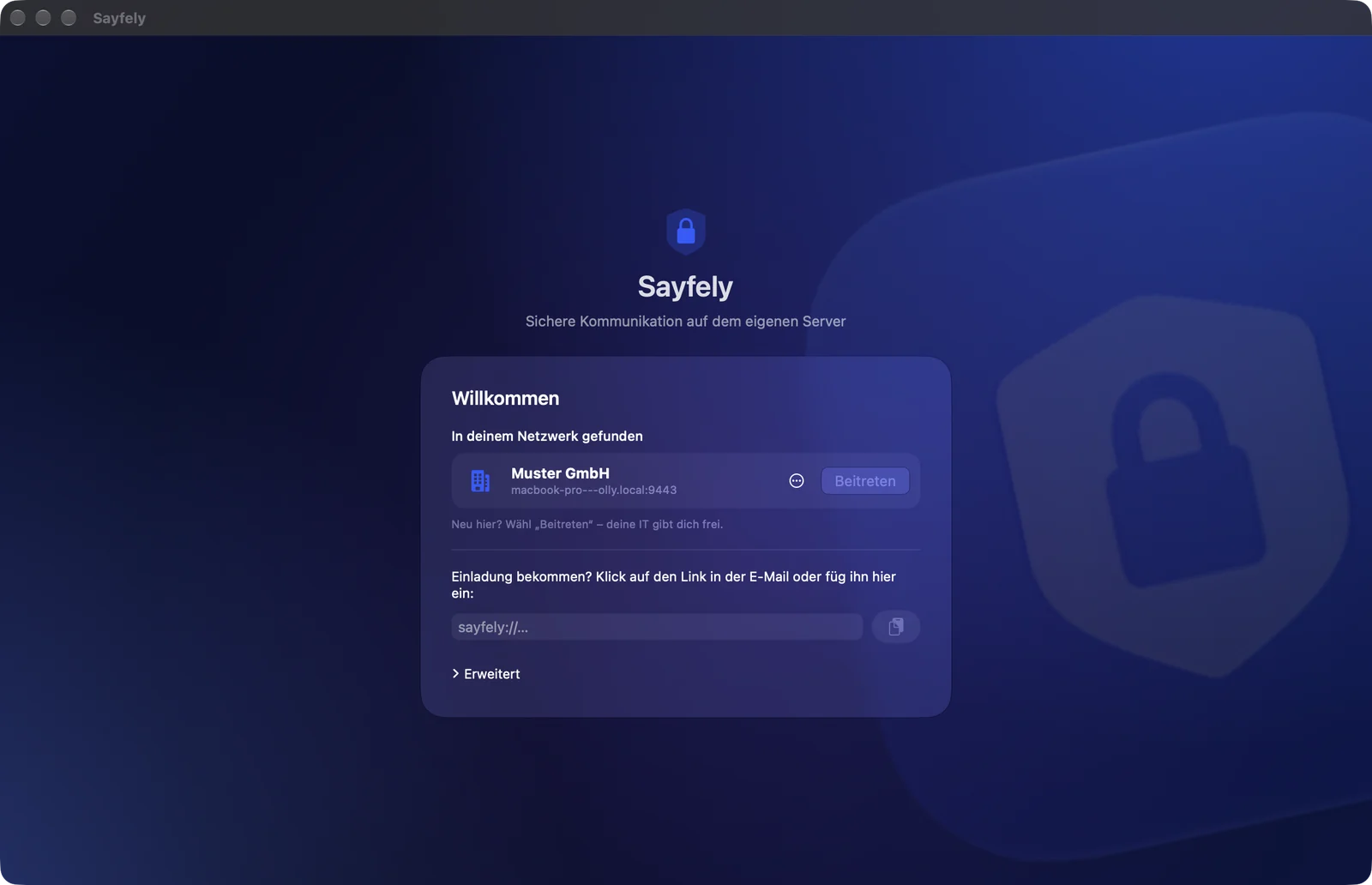
On the start screen you have these options:
- Join – you’re new and want an account. Your IT approves you.
- … → I already have an account … – you already have an account (for example on another Mac).
- The Paste Link field – you received an invitation by e-mail.
- Advanced – only for special cases: Enter Server Address… (e.g. when you’re away from the office) and Error report ….
At the office: Join
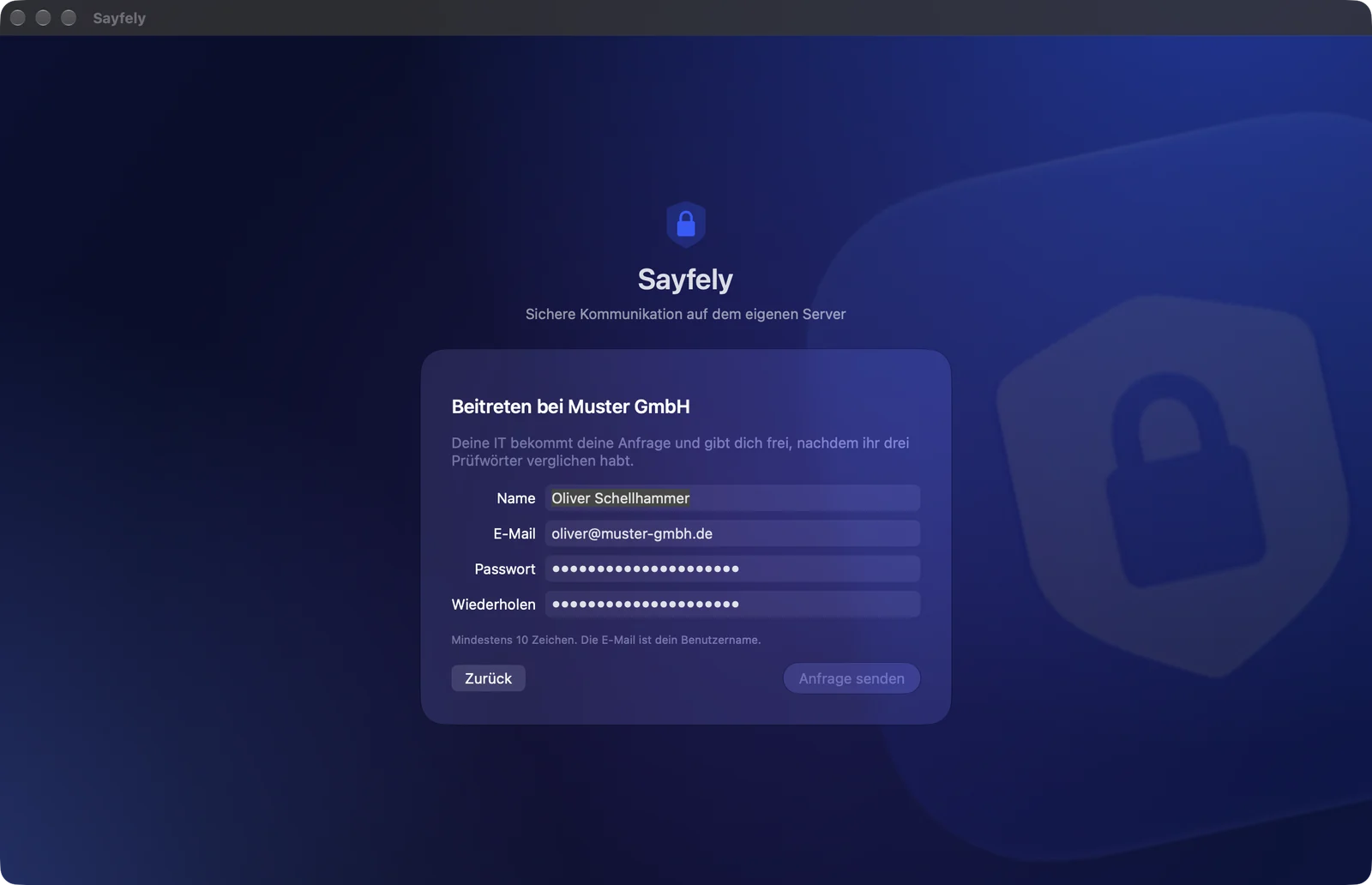
Here’s how to get an account at the office – no invitation needed:
- On the start screen, click Join next to your company’s name.
- In the Join … form, enter your Name (first and last name) and your E-mail. Your e-mail address will be your user name.
- Choose a Password with at least 10 characters and enter it again under Repeat.
- Click Send request.
- Sayfely now shows Waiting for approval and three words. The next section explains what happens next.
The three check words
After you send the request, your Mac shows three words. Your IT sees your request with three words too – in Sayfely or in the Sayfely Server app.
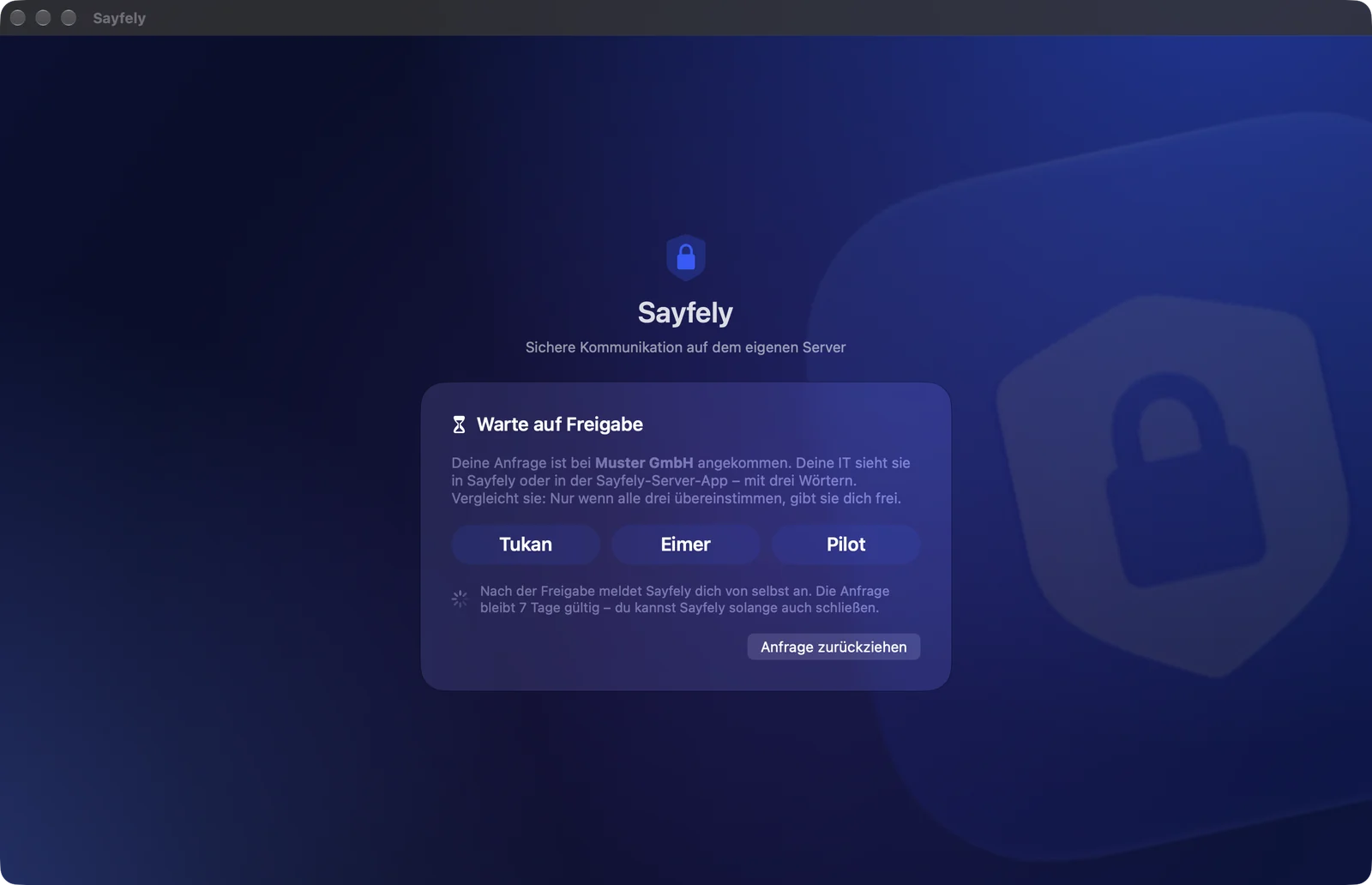
- Let your IT know you’ve sent a request – in person or by phone.
- Compare the three words together. IT only approves you if all three match.
- After approval, Sayfely asks you: “Did they tell you exactly these three words?” If so, click Yes, all three match.
- Then sign in with your password (Sayfely shows “You’re approved. Sign in with your password.”) – done.
- The request stays valid for 7 days. You can close Sayfely in the meantime – it picks up where it left off the next time you open it.
- If you change your mind, click Withdraw request and confirm with Withdraw.
- If the request was declined, the start screen tells you: “Your request was declined. Please check with your IT.”
How IT approves requests is described in the admin manual.
With an invitation link
If you’ve received an invitation (for example as a new colleague who isn’t at the office), it comes in two parts:
- a link by e-mail (it starts with
sayfely://), and - a 6-digit code that you receive separately – by phone or text message.
- Install Sayfely and open the link from the e-mail with a click. Alternatively, copy the link and paste it into the Paste Link field on the start screen (or click the paste button next to it).
- Sayfely checks the server automatically and shows Hello …! with the name of the inviting company and your e-mail address. Below it, in green: “Server verified and securely connected”.
- Enter the 6-digit Code you received by phone or text message.
- Under Choose password, pick a password (at least 10 characters) and repeat it.
- Click Get Started. Your Mac is now linked to your account.
Already have an account? Another Mac
You already have an account and are setting up Sayfely on another Mac:
- On the start screen, click … next to your company, then I already have an account ….
- If this Mac doesn’t know the server yet, Sayfely shows Verify Fingerprint with 16 blocks of letters and digits.
- Compare all 16 blocks with the fingerprint in the Sayfely Server app (under Overview → Connect) – ideally together with your IT.
- Only if everything matches: click Matches – Trust. Otherwise click Cancel.
- Sign in with your e-mail and password.
Signing in
Once your Mac knows the server, Sayfely only asks for your password when it starts. At the top you see the company name and, in green, “Securely connected to …”.
- Check your E-mail (Sayfely remembers it).
- Enter your Password.
- Click Sign In or press ↩.
- Forgot your password? Your IT resets it in the Sayfely Server app.
- Too many failed attempts: after 5 wrong passwords, signing in is locked for 15 minutes. Sayfely shows until when (“Locked until …”). Every failed attempt is shown to you in the Security Center.
- With … → Use another server … you can forget this server. After that you need a link from the other server.
Permissions on first launch
The first time you start Sayfely, macOS asks whether it may do certain things. These questions are normal:
| macOS asks about | What you should do |
|---|---|
| Finding devices on the local network | Allow. Otherwise Sayfely can’t find the server at the office. |
| Notifications | Allow. Otherwise no banners appear for messages, events and calls. |
| Camera and microphone | Only asked the first time you need them in a conference. Allow them if you take part in conferences. |
| Screen sharing | Asked the first time you share. Each time, you choose what you show. |
You can review and change all permissions later in the Security Center or in Settings under Permissions.
3. The main window
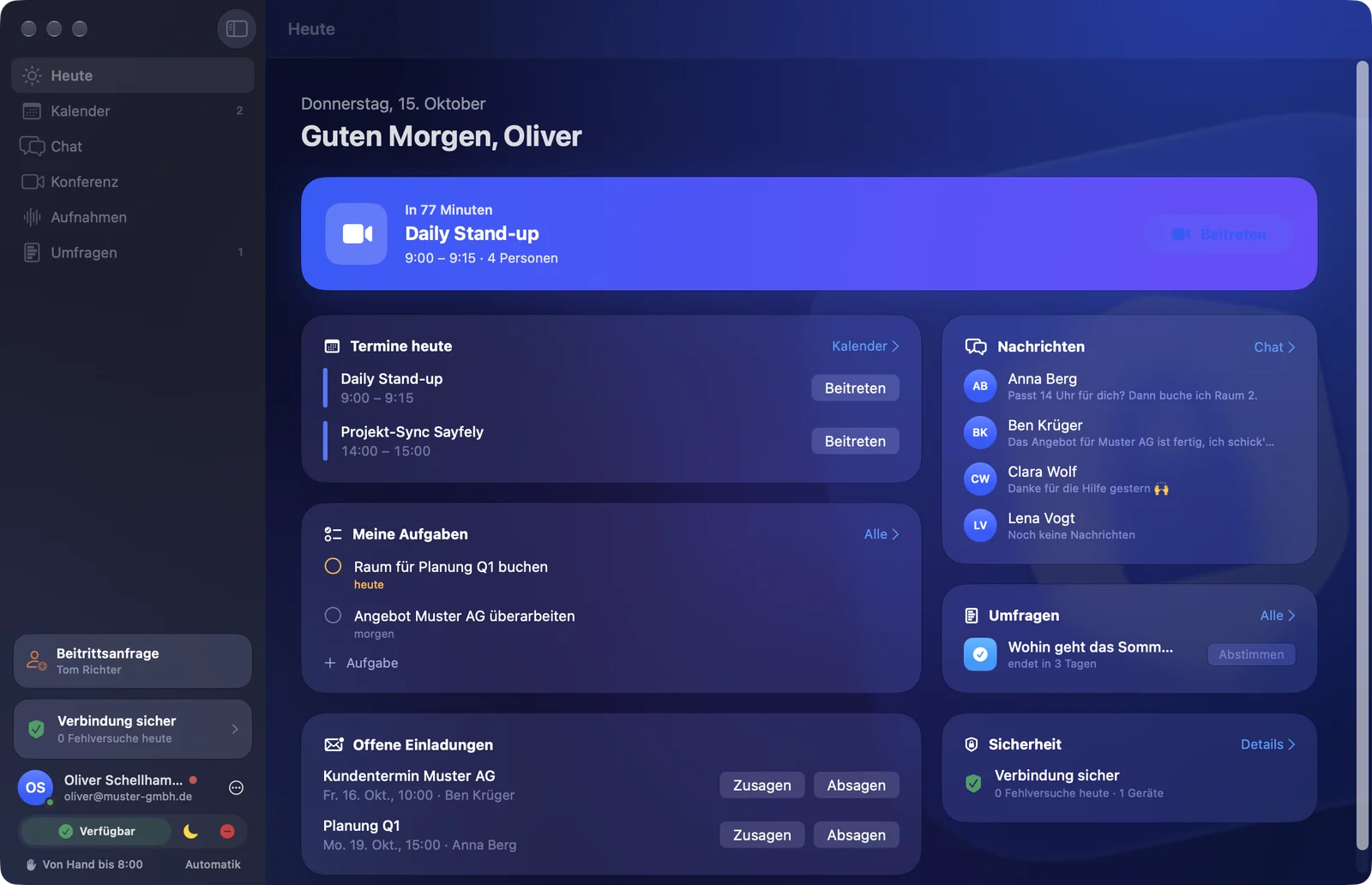
After signing in you see the main window: the sidebar on the left, the selected area on the right.
The sidebar
At the top are the areas: Today, Calendar, Chat, Conference, Recordings and Polls. Small numbers next to them show what’s waiting for you:
- Calendar: open invitations.
- Chat: unread messages. When a new message arrives, the icon briefly bounces.
- Recordings: recordings currently being transcribed or uploaded.
- Polls: polls still waiting for your answer, and new results.
At the bottom of the sidebar:
- Update card (only when there’s a new version): Update available – “New Sayfely version from your server”. One click installs it and restarts Sayfely.
- Join requests (admins only): see the admin manual.
- Security card with “Connection secure” and today’s failed attempts. A click opens the Security Center.
- Your profile with name, e-mail and status.
The “Today” page
The home page greets you with the date and your name (“Good morning, …”) and shows what matters today:
- Next event (a large coloured card as soon as an event starts in less than 3 hours): “In 25 minutes” or “In progress”, title, time, number of people. If the event has a video conference, you’ll see Join.
- Today's Events – with a Join button for video conferences. From 10 minutes before the start, the button turns green. Clicking an event opens it in the calendar. Top right: Calendar.
- My Tasks – your open tasks (overdue and today’s first). Click the circle to tick one off. Task creates a new one, All opens the task list.
- Open Invitations – Accept or Decline right there. If someone proposes a new time for your event, you can Accept or Decline it here.
- Messages – your latest conversations; unread ones are bold with a count. A click opens the chat.
- Polls – polls with Vote and fresh results with Result.
- Security – connection status, today’s failed attempts and the number of your devices; Details opens the Security Center.
Your status
Under your name at the bottom left, you choose your status with one click: Available (green), Away (yellow) or Busy (red). Colleagues see it as a coloured dot on your picture.
Sayfely can also set your status automatically – for example “Busy” during an event or “Away” after work. Underneath, you then see the reason, e.g. “In an event until 15:00”. If you pick a status by hand, it says “Set manually”; Automatic hands control back to Sayfely.
You can configure the automatic status in Settings under Status (double-clicking the line under your status takes you straight there).
Profile & department
- Click your name at the bottom left – or click … and then Edit Profile….
- Change your Name if needed.
- Enter your Department (e.g. Sales). With the small arrow on the right, you can pick a department your colleagues already use – so the spelling stays consistent.
- Click Save.
Everyone you write to or call sees your name. People lists are sorted by department, and each department has its own colour. Your e-mail address is your sign-in – only your IT can change it.
In the … menu next to your name you’ll also find Settings… and Sign Out.
Sayfely in the menu bar
Sayfely keeps running even when you close the main window: as a small shield icon at the top of the menu bar. That way messages, reminders and calls always get through.
- Next to the icon is the number of unread messages and new security alerts.
- A click shows the connection status, today’s failed attempts, Unread messages and Security alerts.
- Open Sayfely brings back the main window. Next to it: Settings (gear) and Quit (power symbol).
- The icon flashes when an event is about to start or a security alert comes in.
4. Calendar
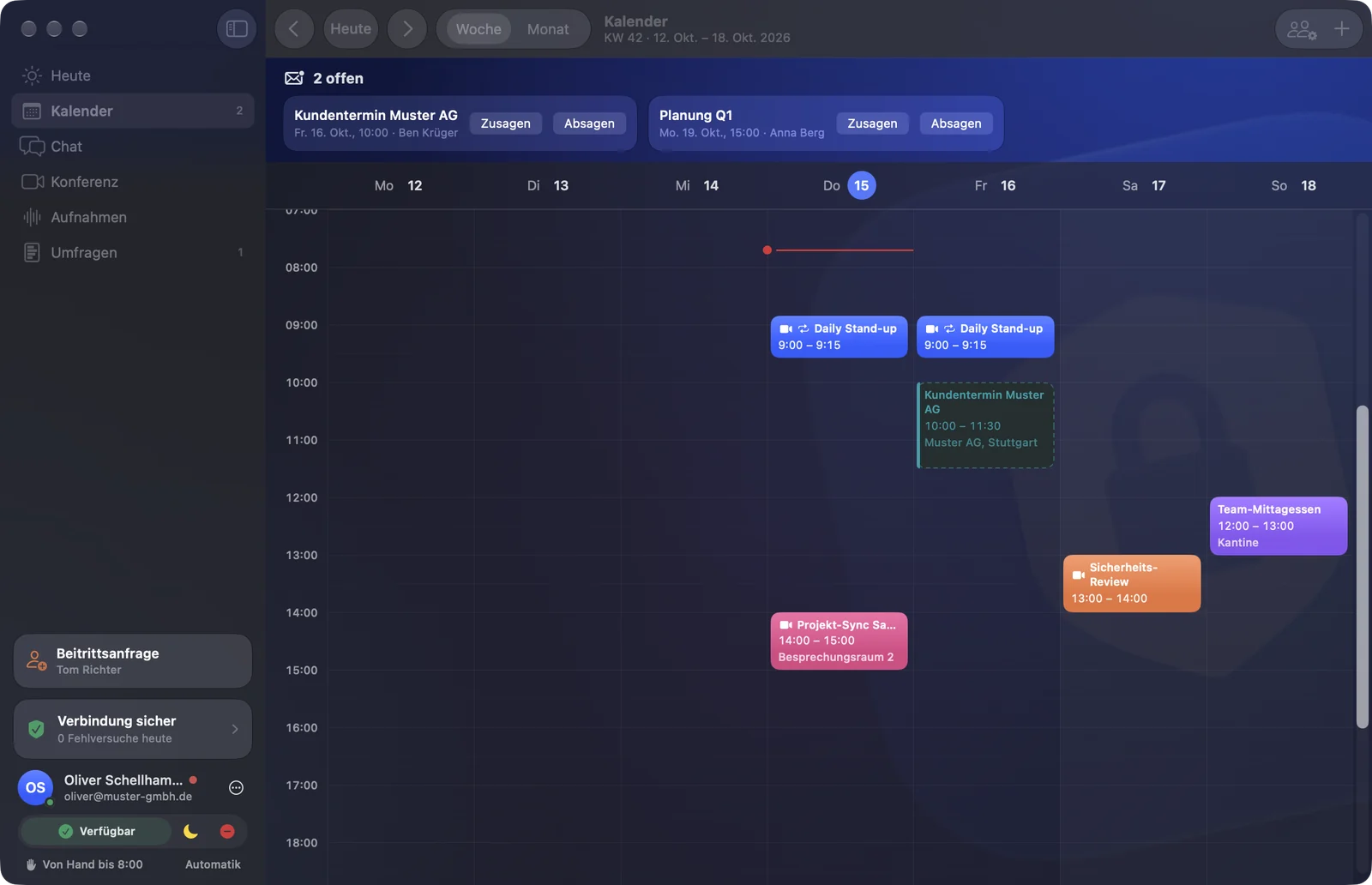
The calendar is where you organise events. Every event is the “file” of a meeting: beforehand the agenda and documents, during it the Join button, afterwards the recording, transcript and tasks.
Week, month, browsing
- At the top left you switch between Week and Month.
- Use the arrows to go back and forth (⌘← / ⌘→). Today (⌘T) jumps to the current week.
- Above the calendar you see the calendar week, e.g. “Week 42 · 13 Oct – 19 Oct 2026”.
- Small icons in an event: camera = with video conference, circular arrow = recurring.
- In the month view, clicking a day opens that week; double-clicking creates an event there.
If you have open invitations, a strip “… open” appears at the top with all invitations and time proposals, so you can answer them directly.
Creating an event
There are three ways to create an event:
- click New Event (⌘N),
- in the week view, drag across the time you want with the mouse button held down, or
- double-click a free spot.
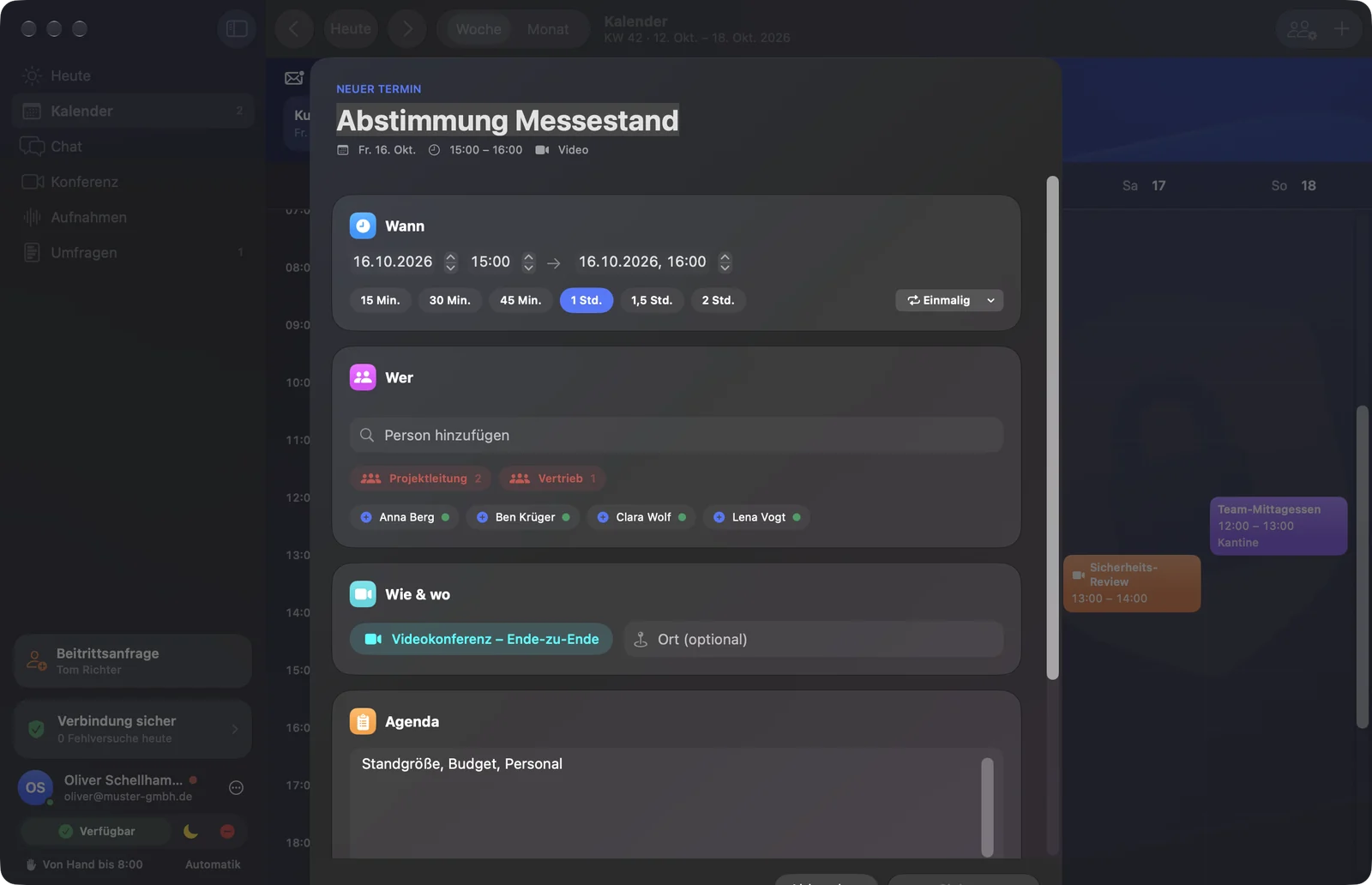
- At the top, write what it’s about (title).
- When: choose date, start and end. The buttons 15 min, 30 min, 45 min, 1 hr, 1.5 hrs, 2 hrs set the length with one click.
- For a recurring event: click Once and choose Daily, Weekdays (Mon–Fri), Weekly, Every 2 weeks or Monthly. Use Ends on to set an end date.
- Who: type a name or department into Add person and click the person. Clicking a department (e.g. “Sales 4”) invites the whole department. For each person you see free or busy; the top right shows how many are busy.
- How & where: by default, Video conference – end-to-end is turned on. One click switches to Without video conference. Optionally enter a Location.
- Agenda: write down the points. Points starting with • or a number are ticked off automatically after the meeting if they were discussed. With Suggest Agenda, Apple Intelligence plans suitable points for the length of the meeting – on your Mac.
- Documents: drag in PDFs, slides or spreadsheets, or click to choose them. They are attached encrypted when you save.
- Click Invite (with people) or Save (without people).
Find a Time
Looking for a time when several colleagues are available? Click Find a Time (⇧⌘F).
- On the left under Who should attend?, tick the people (filter with Search).
- Choose the Length and, under From, the earliest day.
- On the right, Suggestions appear: times when everyone is free and within their working hours – breaks and existing events are taken into account.
- Click a suggestion. The event editor opens with the time and people filled in – just add a title and invite.
The event file
Clicking an event opens its file on the right:
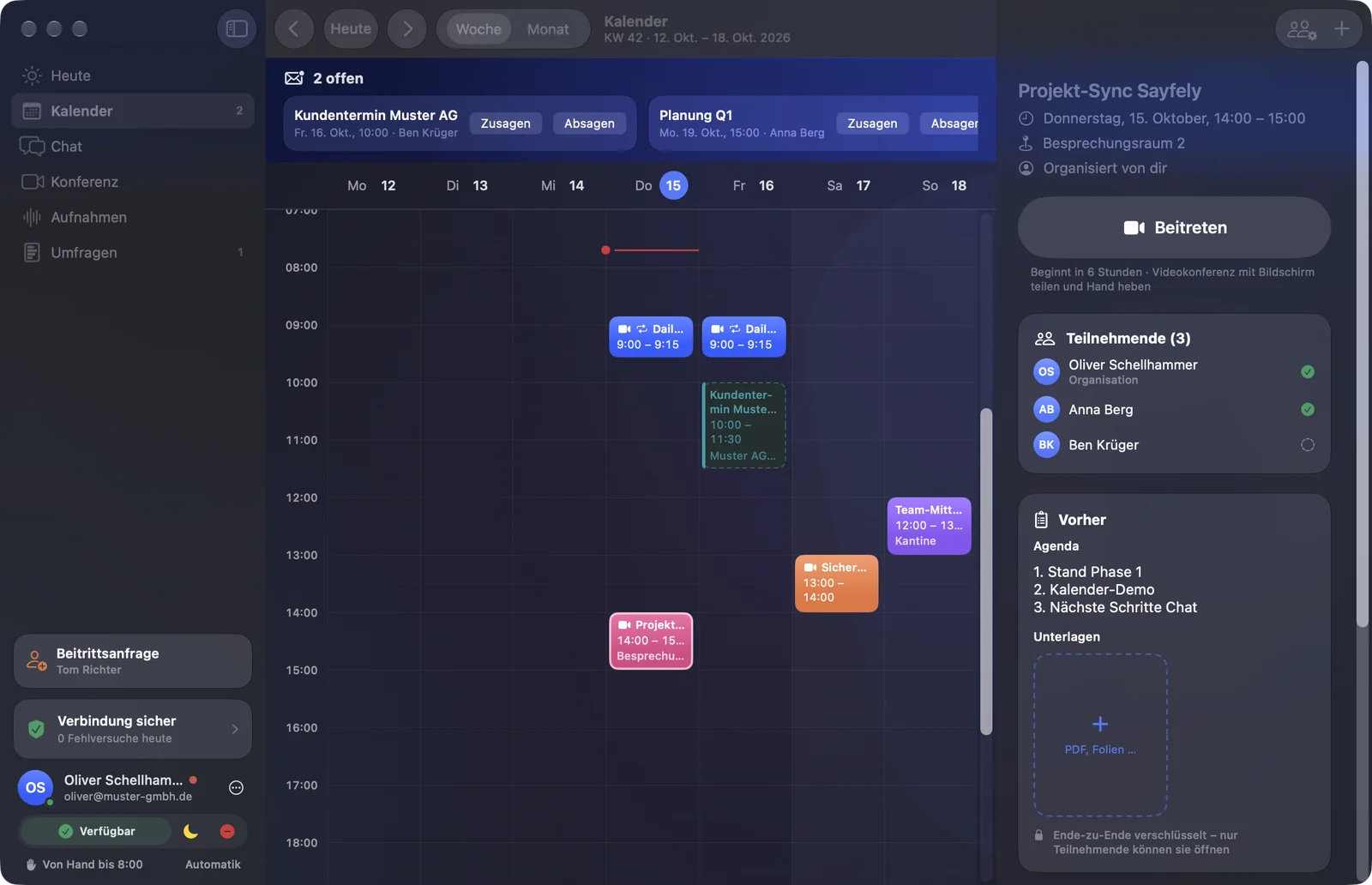
- Header: title, date and time, recurrence, location and “Organised by …”.
- Your Response (if you’re invited): Accept, Maybe or Decline.
- Join (⌘J) – for events with a video conference. From 10 minutes before the start it’s green. The room stays open even after the event.
- Participants – with an icon for Accepted, Maybe, Declined or “Pending”.
- Before – Agenda and Documents.
- Polls – polls for this event; Poll for Participants asks all participants.
- After – tasks from this event (create new ones with Task) and the recordings with summary, Open, film/audio export and Save transcript.
- At the very bottom: Export (.ics); as the organiser, also Edit and Decline.
Responding to invitations
When you’re invited, you get a banner “Invitation: …” with a sound. The invitation appears:
- on the Today page under Open Invitations,
- in the calendar in the strip at the top, and as a number next to Calendar in the sidebar.
Click Accept or Decline. You choose “Maybe” in the event file under Your Response. Declined events disappear from your “Today” page.
Moving & proposing a new time
As the organiser, you simply move an event with the mouse:
- Click the event and drag it to another time or day (in 15-minute steps).
- Drag the bottom edge to make it longer or shorter.
- Or: click the event and move it by 15 minutes with ↑/↓, or by one day with ←/→.
- Moved it by mistake? ⌘Z undoes the move.
As an invitee, you can drag an event too – Sayfely then asks Propose a new time?. With Propose New Time, the organiser receives your proposal. The event stays where it is until they agree. In the calendar you see your proposal as a dashed orange frame “Proposed” with “waiting for …” underneath.
If someone proposes a new time for your event (“… proposes”), you decide with Accept or Decline.
Editing & cancelling
- Edit: double-click your event or click Edit in the event file. Save Changes notifies everyone.
- Cancel: click Decline in the event file (or select the event and press ⌫), then Cancel for Everyone. All participants are notified immediately.
Only the organiser of an event can edit or cancel it.
Documents
You can attach documents to any event – beforehand, but also during the conference.
- Open the event file and look for Documents under Before.
- Click the tile with the plus (“PDF, slides …”) or drag files onto it from the Finder.
- Clicking a document shows a preview. Right-clicking offers Preview, Open and – for the person who uploaded it and the organiser – Remove.
Export (.ics)
With Export (.ics) in the event file, you save an event as a calendar file – for example for the calendar on your Mac or for someone who doesn’t use Sayfely.
5. Chat
In Chat you write to individual people and send files. Everything is end-to-end encrypted – the server only sees ciphertext.
The people list
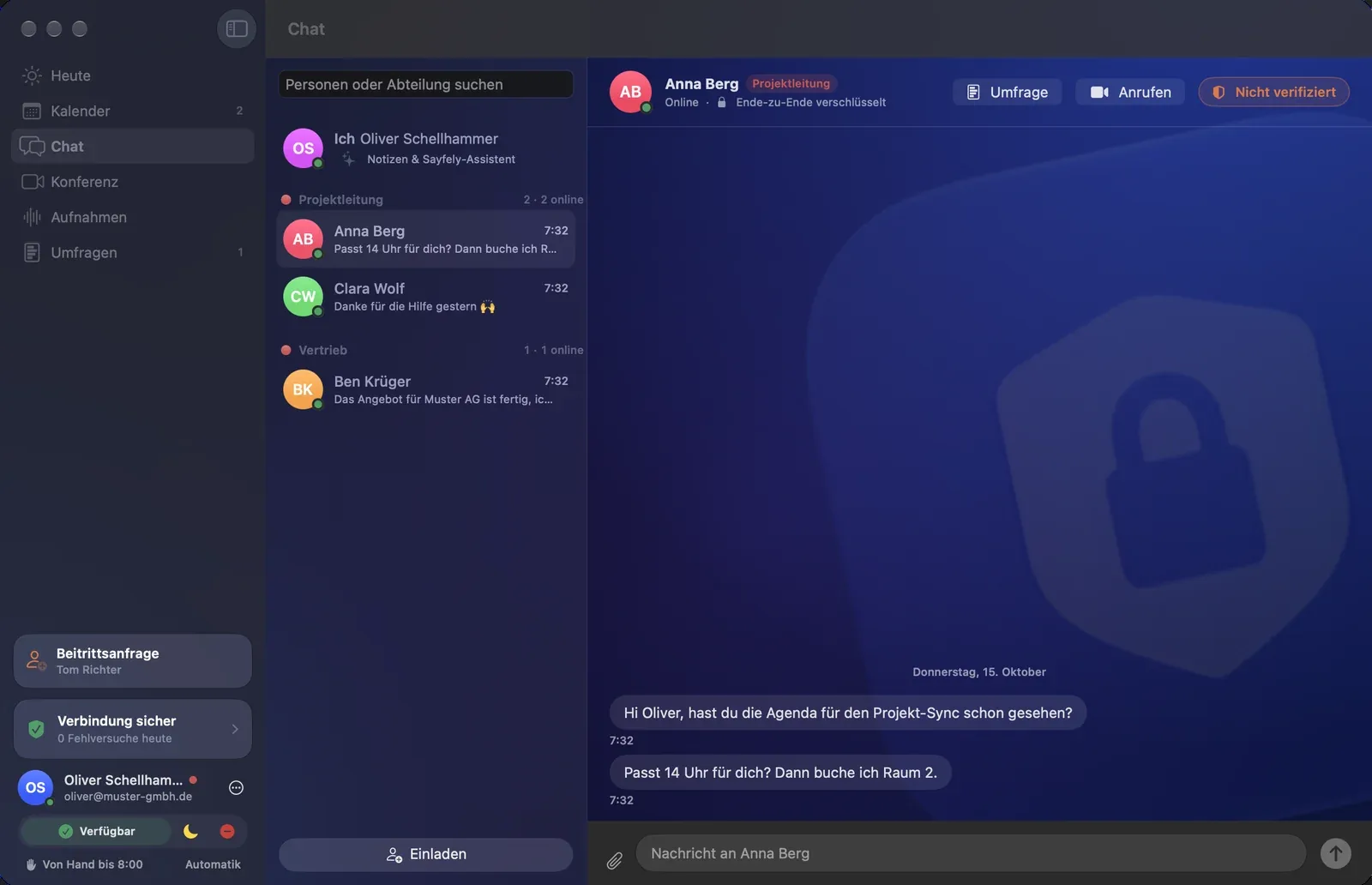
- At the very top: Me – your notes and the Sayfely assistant (see chapter 6).
- Recent – your latest conversations (when you have many contacts).
- Departments – each with its own colour, yours first, e.g. “● Sales 4 · 2 online”. People without a department: No Department.
You can expand and collapse sections; Sayfely remembers your choice. At the top you can search with “Search people or department”.
Each row shows the picture with a status dot, the name, the last message and the time. Unread items are bold, highlighted in blue and have a count. A green seal next to the name means the security code is verified. An orange warning triangle means the security code has changed.
Writing messages
- Click the person on the left.
- Type into the “Message to …” field at the bottom.
- Press ↩ or ⌘↩, or click the blue arrow.
Under your messages you see their status:
| Symbol | Meaning |
|---|---|
| Clock | Sending. |
| Tick | Delivered. |
| Blue circle with tick | Read. |
When the other person is typing, “… is typing …” appears. You can turn off read receipts and “is typing …” in Settings under Notifications – then you won’t see them from others either.
In the conversation header you’ll also find:
- Call – starts a video call; the other person’s Mac rings.
- Poll – starts a poll with this person (colleagues only).
- the Verified / Not verified button – opens the security code.
Replying, reacting, editing
Hover over a message: three quick reactions (👍 ❤️ 😂) and the reply arrow appear. Right-clicking a message offers:
- Reply – your reply quotes the message.
- React – 👍 ❤️ 😂 😮 🎉 🙏. Clicking an existing reaction adds yours too, or removes it.
- Copy.
- For your own messages: Edit (it then shows “edited”) and Withdraw… → Withdraw for Everyone. The message disappears for the other person and from the server.
Press esc to cancel replying or editing.
Sending files
- Click the paper clip to the left of the input field and choose a file, or
- drag one or more files from the Finder into the conversation (“Release to send – end-to-end encrypted”).
Files can be at most 50 MB. Clicking a received file opens it. macOS checks apps and scripts just like a download from the internet.
Comparing the security code
Your conversations are always encrypted. With the security code you additionally check that the right person really is at the other end.
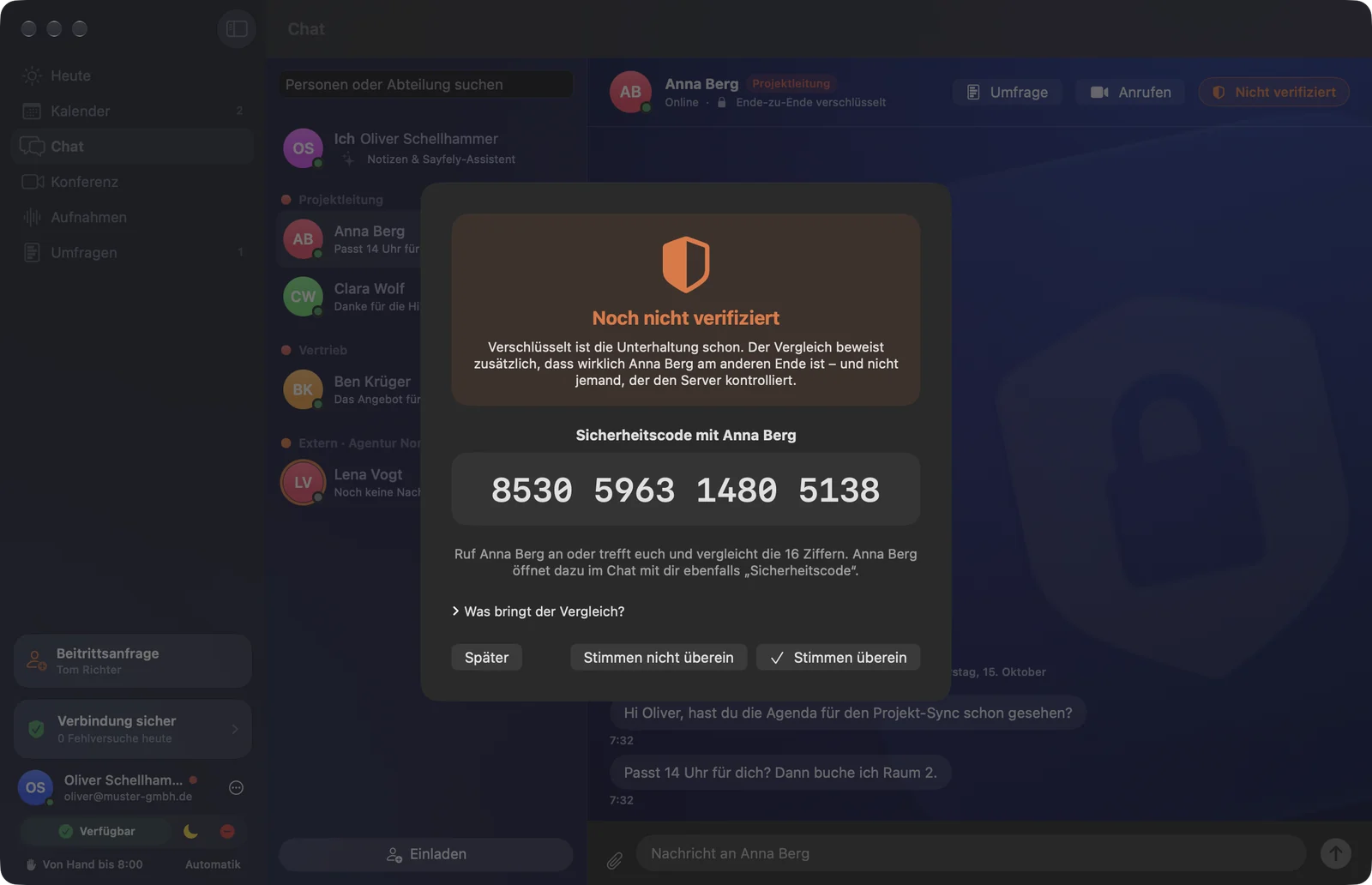
- Open the conversation and click Not verified at the top right.
- Call the person or meet up. They open the security code in their chat with you too.
- Compare the 16 digits. Please don’t compare them via chat!
- If they’re all the same: They match. The button turns green: Verified.
- If they differ: They don't match. Don’t send the person anything confidential for now, and let your admin know.
| Display | Meaning |
|---|---|
| Verified (green) | You compared the code. It’s definitely the right person – nobody is listening in. |
| Not verified (orange) | The conversation is already encrypted; you just haven’t compared yet. Completely normal. |
| Code changed! (red) | The person has a new device – or someone is getting in between. Please compare again. |
Inviting colleagues
At the office, new colleagues come on board via Join. For everyone else – working from home, for example – there’s an invitation with link and code. Only admins can invite: they see the Invite button at the bottom of the list in Chat. The link goes out by e-mail, the 6-digit code by phone or text message – never by e-mail. More in the admin manual.
6. “Me”: notes & assistant
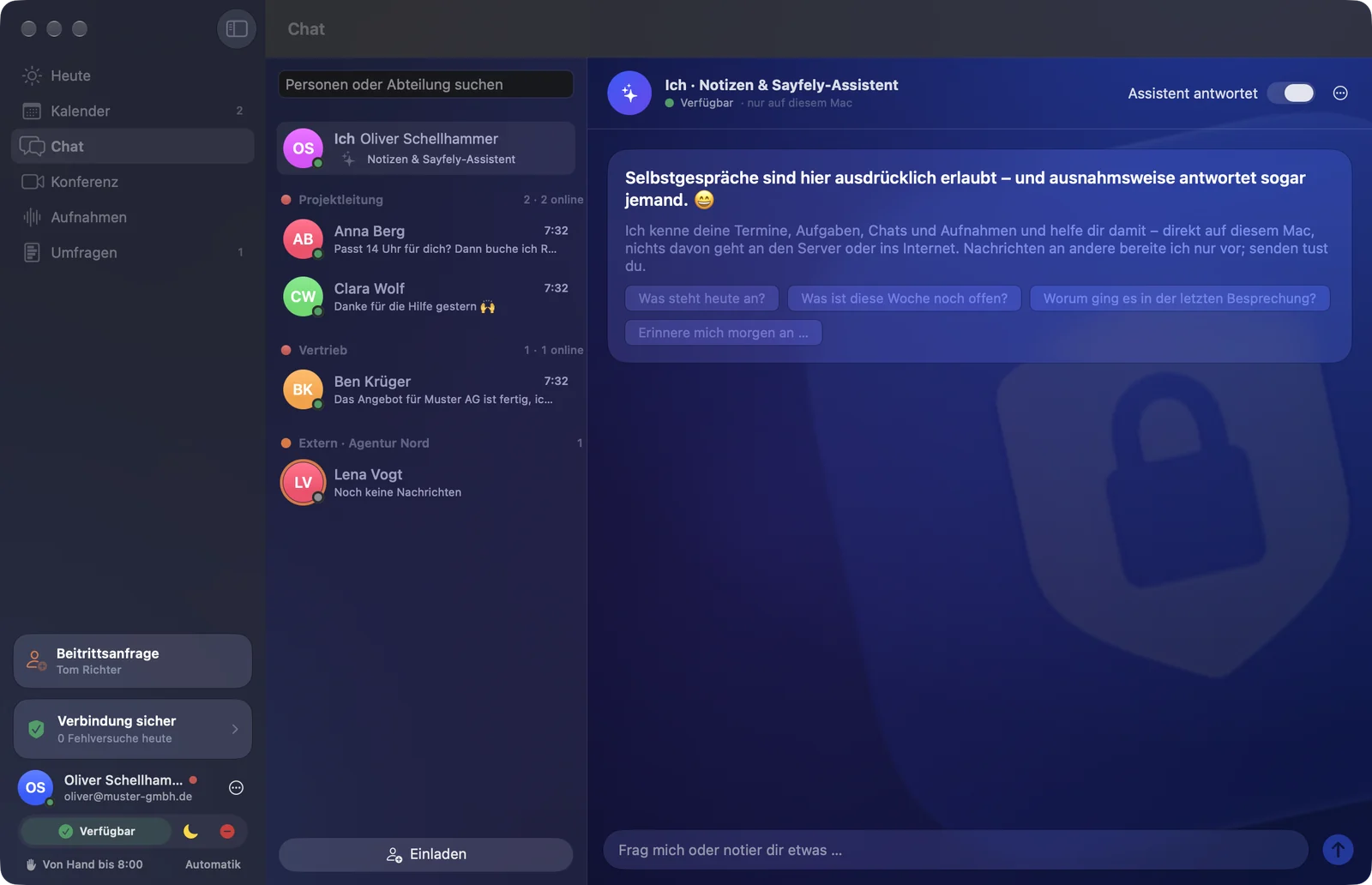
At the very top of Chat is Me – “Notes & Sayfely assistant”. Talking to yourself is explicitly allowed here – and for once, someone even answers.
Notes to yourself
Type whatever you want to remember into the field at the bottom and send it with ↩ or ⌘↩. If you turn off Assistant answers at the top, everything here is just a note to yourself (“Note to yourself …”).
The Sayfely assistant
The assistant knows your events, tasks, chats and recordings and helps you with them. Try, for example:
- “What’s on today?”
- “What’s still open this week?”
- “What was the last meeting about?”
- “Remind me tomorrow to …”
- “Tell Anna I’ll be ten minutes late.”
The suggestions appear as buttons under the greeting – one click is all it takes.
The assistant never sends anything on its own
- Messages: if you ask it to write to someone, it prepares a Draft to …. Only when you click Send to … does it go out – end-to-end encrypted like any chat message. Discard deletes it.
- Tasks: if your note sounds like a task, it asks “Shall I turn this into a task?”. Create task creates it (due at 9:00 on the day mentioned); with Just a note it stays a note.
7. Conference
Video and audio with several people – end-to-end encrypted. There is deliberately no chat in the conference area; to write, use the Chat area.
Instant conference
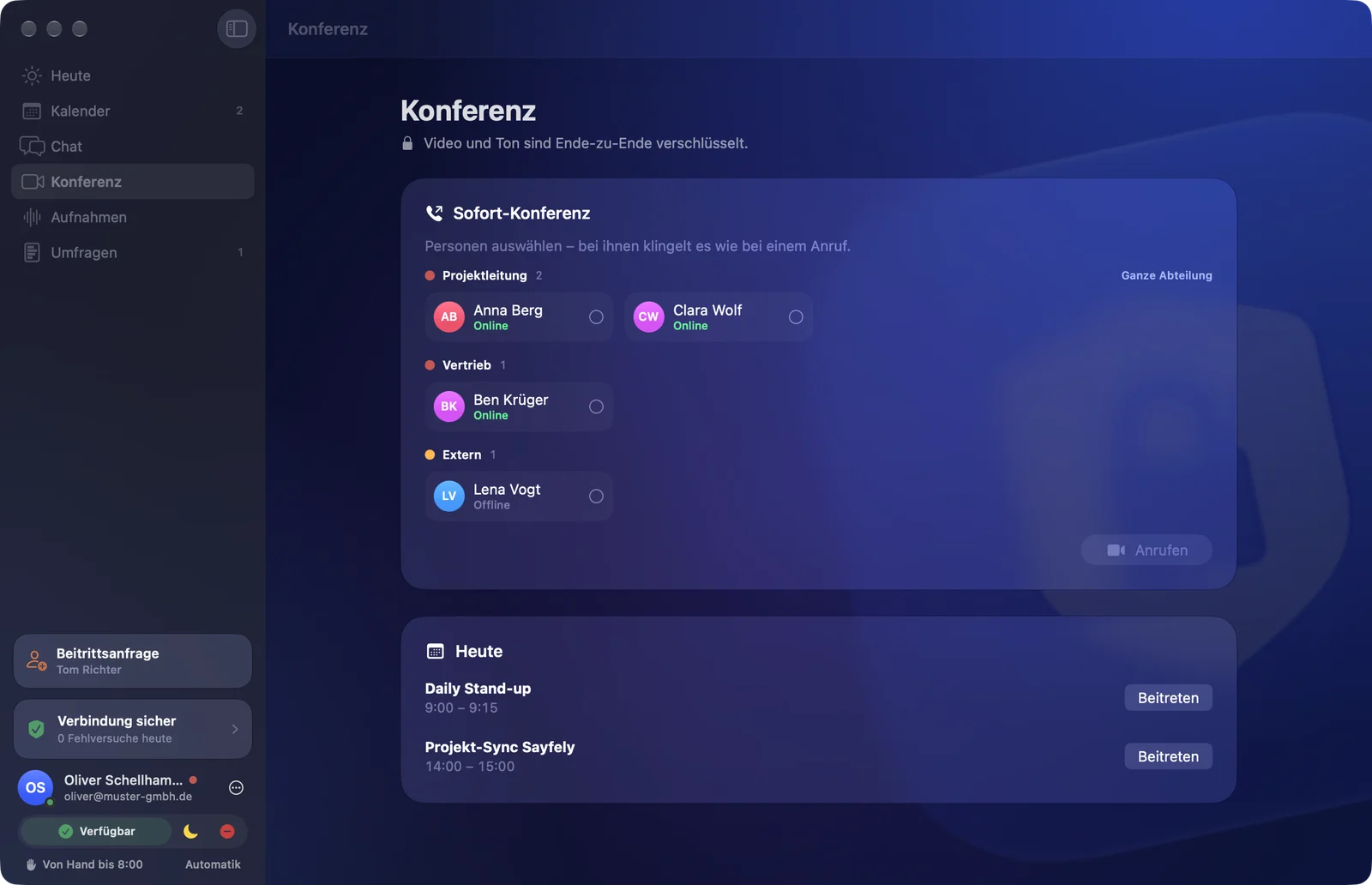
Want to talk to one or more people right now? Their Macs ring just like a phone call.
- Open Conference in the sidebar.
- Under Instant Conference, click the people you want (tick). Under each name is their status (Online, Away, Busy, Offline). Whole Department selects everyone who is currently reachable.
- Click Call … people.
- At the top you see who is “ringing …”, who is “joining” and who has “declined”.
With just one person it’s even quicker: click Call at the top of the chat.
Answering a call
When someone calls you, a call window appears in the middle of the screen – above all other windows. It rings, and the Dock icon bounces.
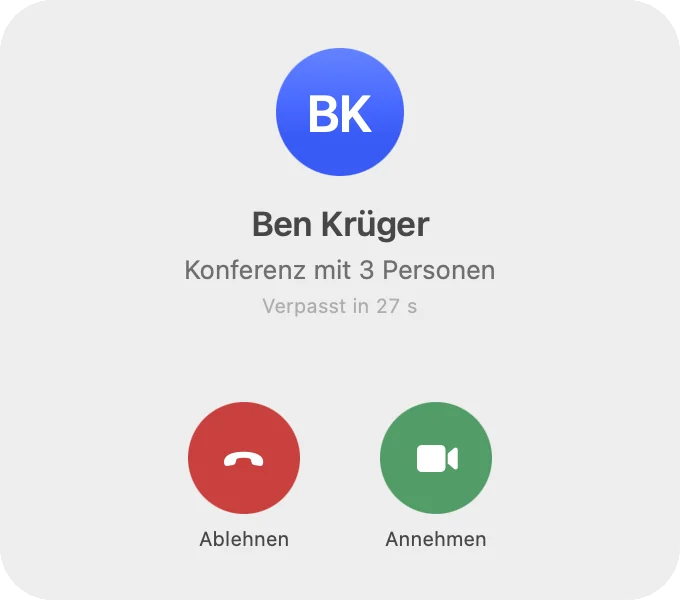
- Accept – you’re in the conference immediately.
- Decline – the caller sees “declined”.
- If you don’t respond, it stops ringing after 30 seconds – the call counts as missed.
Joining an event
You get into a scheduled video conference with Join – on the Today page, in the event file, in the conference area under Today, or right in the reminder window.
- Click Join.
- A preview opens: “Check camera and microphone – nothing is sent until you click “Join”.” You see yourself.
- Use Microphone on/Microphone off and Camera On/Camera Off to choose how you want to enter. If you have several cameras, you pick one here.
- Click Join. Cancel takes you back.
In the conference
A running conference is always dark. At the top you see the title, the green End-to-end badge, the duration and the number of people. Whoever is speaking gets a green frame; a crossed-out red microphone shows who is muted.
At the bottom is the control bar:
| Button | What it does | Shortcut |
|---|---|---|
| Mute / Unmute | Turns the microphone off or on. The small arrow next to it chooses the microphone, microphone mode and speaker. | ⇧⌘D |
| Camera Off / Camera On | Turns the camera off or on. The small arrow chooses the camera and effects (blurred background, custom background, Studio Light, Center Stage). | ⇧⌘E |
| Effects | Opens the macOS video effects (background, Studio Light, reactions). | ⇧⌘F |
| Screen / Stop Sharing | Shares your screen, an app or a window. | ⇧⌘S |
| Raise Hand / Lower Hand | Shows everyone that you’d like to say something. | ⇧⌘H |
| Record / Stop | Only for the person allowed to record. See Recording yourself. | ⇧⌘R |
| Consents | During a recording: who has agreed and who isn’t being recorded. | ⇧⌘Z |
| Documents | For events: view and add PDFs and slides for the event. | ⇧⌘U |
| Transcript / Hide Transcript | Shows or hides the live transcript. | ⇧⌘T |
| Leave | Leaves the conference (red button). | ⇧⌘W |
Sharing your screen
- Click Screen in the control bar.
- macOS shows its picker. Choose whether to show the whole screen, an app or just one window.
- Everyone now sees what you’re sharing in large (“… is sharing their screen”); the people appear small next to it.
- Use the small circular-arrow icon on the button to switch to another window or screen.
- Done? Click Stop Sharing.
Raising your hand
Click Raise Hand (⇧⌘H). Your picture gets a bright yellow frame with a large hand and “Hand raised”. At the top of the conference, everyone sees in yellow who wants to speak. Lower Hand puts it down again.
Live transcript & language
While a recording is running, a live transcript is created: to the right of the video you see, as a conversation, who is saying what. Each voice is recognised on that person’s own Mac and shared encrypted with the room.
- Your language: use the globe menu in the transcript (or Settings) to choose My language. What you say is recognised in it, and you read everything in it.
- Translating: with Translate other languages into mine, you read contributions in other languages in your own. Clicking a translated contribution shows the original.
- If a language pack is missing for a translation, you see “A language pack is missing for the translation.” – click Download.
8. Recordings
Meetings can be recorded – but only with consent. Anyone who declines isn’t recorded. The recording is stored end-to-end encrypted on the company server.
Being asked: agree or decline
When someone wants to record the conference, you see a window “… would like to record this conference”. It explains exactly what happens:
- Audio and video (camera and shared screen) are recorded, plus a live transcript.
- The recording is stored end-to-end encrypted on the company’s Sayfely server. Only the event’s participants can open it.
- The company’s retention periods for film, audio and transcript.
- Read the text.
- Click Agree or Decline.
If you decline, you are not recorded – no audio, no video, no transcript. The others are. Everyone sees “Not recorded: …” at the bottom.
During the recording, a red Recording (or “Recording + live transcript”) lights up at the top for everyone. If you agreed and change your mind, click Withdraw my consent to the recording at the bottom. From then on your audio and video are no longer recorded; whatever was recorded up to that point remains.
Recording yourself
The organiser of the event can record – in an instant conference, the person who made the call.
- Click Record in the control bar.
- Everyone present is asked. On the right you see the Consents list: agreed (green), declined (red), waiting (orange, with waiting time). The button shows “Waiting (…)”.
- The recording starts as soon as everyone has answered.
- If someone doesn’t answer: use … next to their name to Ask again or Start without …. That person is then not recorded.
- People who join later are asked automatically.
- To end the recording, click Stop.
After the conference, your Mac transcribes each voice separately (so it’s always clear who said what), analyses the conversation and uploads everything encrypted to the company server. In the sidebar, a number next to Recordings shows that this is still in progress. If the upload doesn’t work right away, Sayfely automatically tries again.
Viewing recordings
In the sidebar under Recordings you’ll find all recordings you belong to – sorted by day. At the top left: Search recordings (including the transcript). At the top right: Refresh.
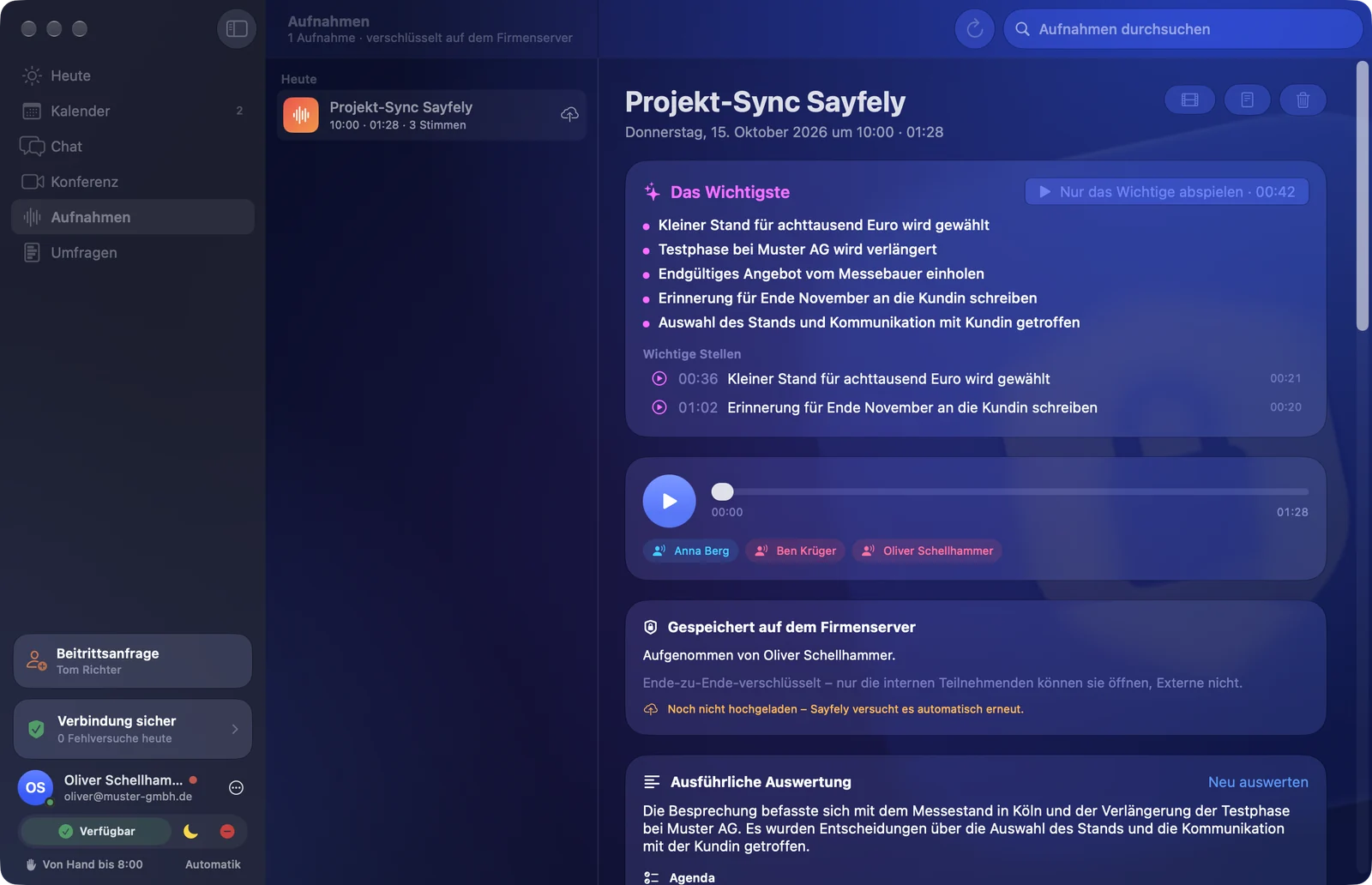
- Key points – a few core points and the Key moments. Clicking one plays it. Play key moments only plays just the important moments one after another – an hour-long meeting in a few minutes.
- Video and player – cameras and the shared screen play along with the audio. Play/pause with the Space bar; use the slider to jump.
- Conversation – the transcript laid out like a chat; your own contributions are on the right. Clicking a sentence plays from that point. Hide “uh” makes it easier to read. If there are contributions in other languages, choose My language or Original.
- Stored on the company server – who recorded it and until when the film, audio and transcript are kept.
- From the calendar – the related event; Open Event takes you there.
- Consents – the consent log: who agreed, declined or withdrew, with the time.
You’ll also find the recordings in the event file under After.
Analysis & questions
- Detailed analysis – summary, ticked-off Agenda (with “not discussed”), Chapters, Decisions, Tasks and Open Questions. Clicking a timestamp jumps to that moment.
- For each task from the meeting: a play icon (listen to the moment), a person icon (assign as a task – with person and deadline) and a calendar icon (create as an event).
- Ask the Meeting – ask a question such as “What was decided about the budget?” and click Ask. The answer lists the Parts: so you can listen back.
Export, delete, retention
- Export as Video (film icon at the top right) – a film with all voices, cameras and the shared screen. Without video: Export audio.
- Save transcript – as a text file, including the consent log.
- Delete (trash can) – only for the person who recorded and for admins. After Delete, the audio, video, transcript and analysis disappear from the server and for all participants.
9. Tasks
You give tasks to yourself or to colleagues – with a deadline, and ideally straight from a meeting.
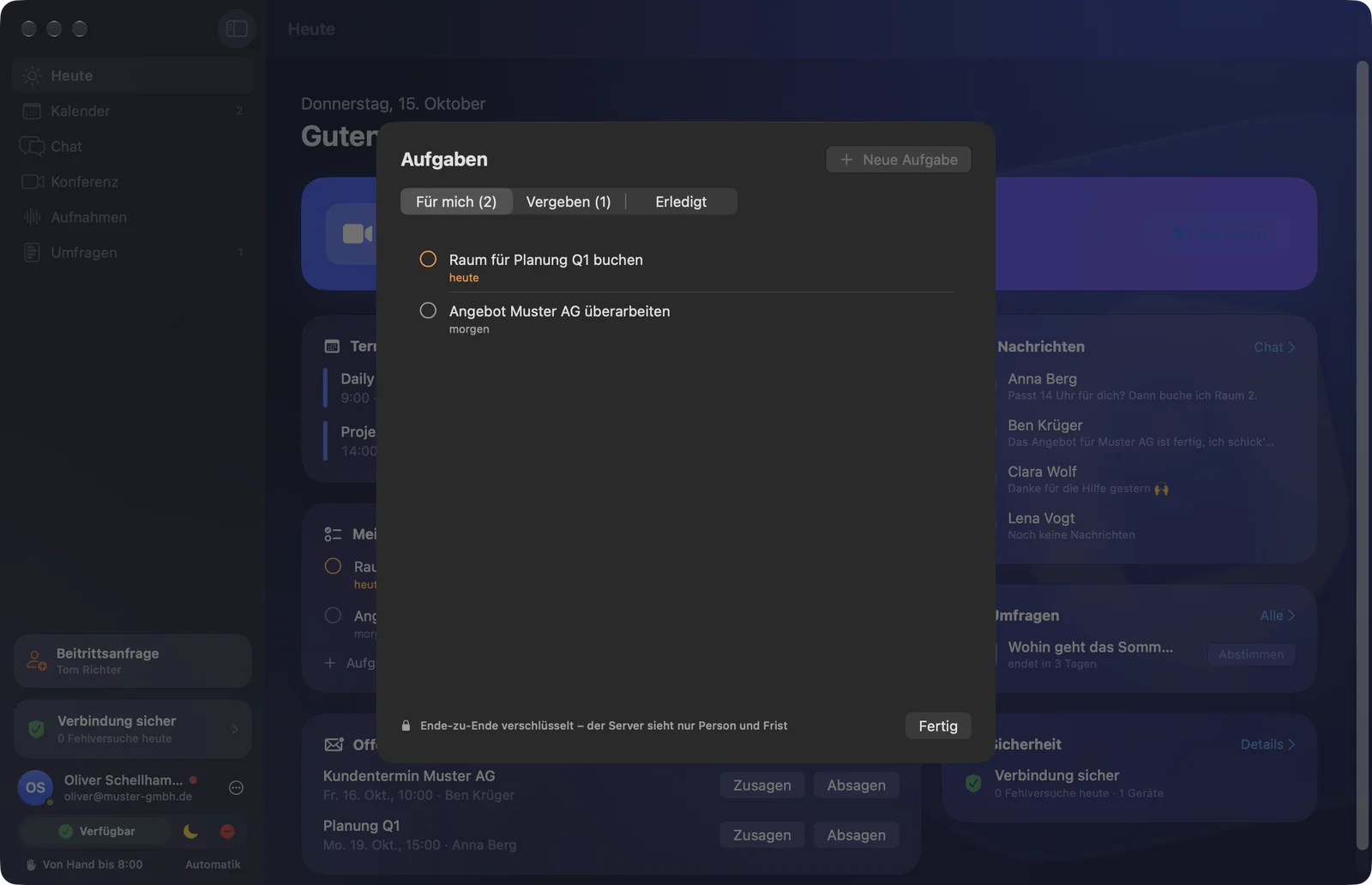
Opening the task list
Via the Go menu → Tasks … (⇧⌘T), or on the Today page under My Tasks with All.
- For me – what you’re supposed to do (the number on the tab shows how many are open).
- Assigned – what you’ve given to others.
- Done – ticked-off tasks.
New task
- Click New Task (⌘N in the list), or Task on the Today page.
- Write what needs to be done, and add notes if needed.
- Under For, choose Me or a colleague (sorted by department).
- Under Due, choose a deadline: None, Today, Tomorrow, Friday, Next Week – or a date.
- Click Create Task.
Ticking off, editing, deleting
- Clicking the circle ticks the task off (another click reopens it).
- Right-click: Edit, Open Event (for tasks from a meeting) and Delete.
- Under each task you see when it’s due (“today”, “tomorrow”, “since yesterday”), who it’s from and whether it comes “from an event”.
At 9:00 on the due date, Sayfely reminds you with a banner “Due today” or “Task overdue”. The banner only shows the task text if you’ve turned on the message preview.
10. Polls
Ask the team something quickly. What’s special: everyone only sees the results at the end – nobody is influenced beforehand.
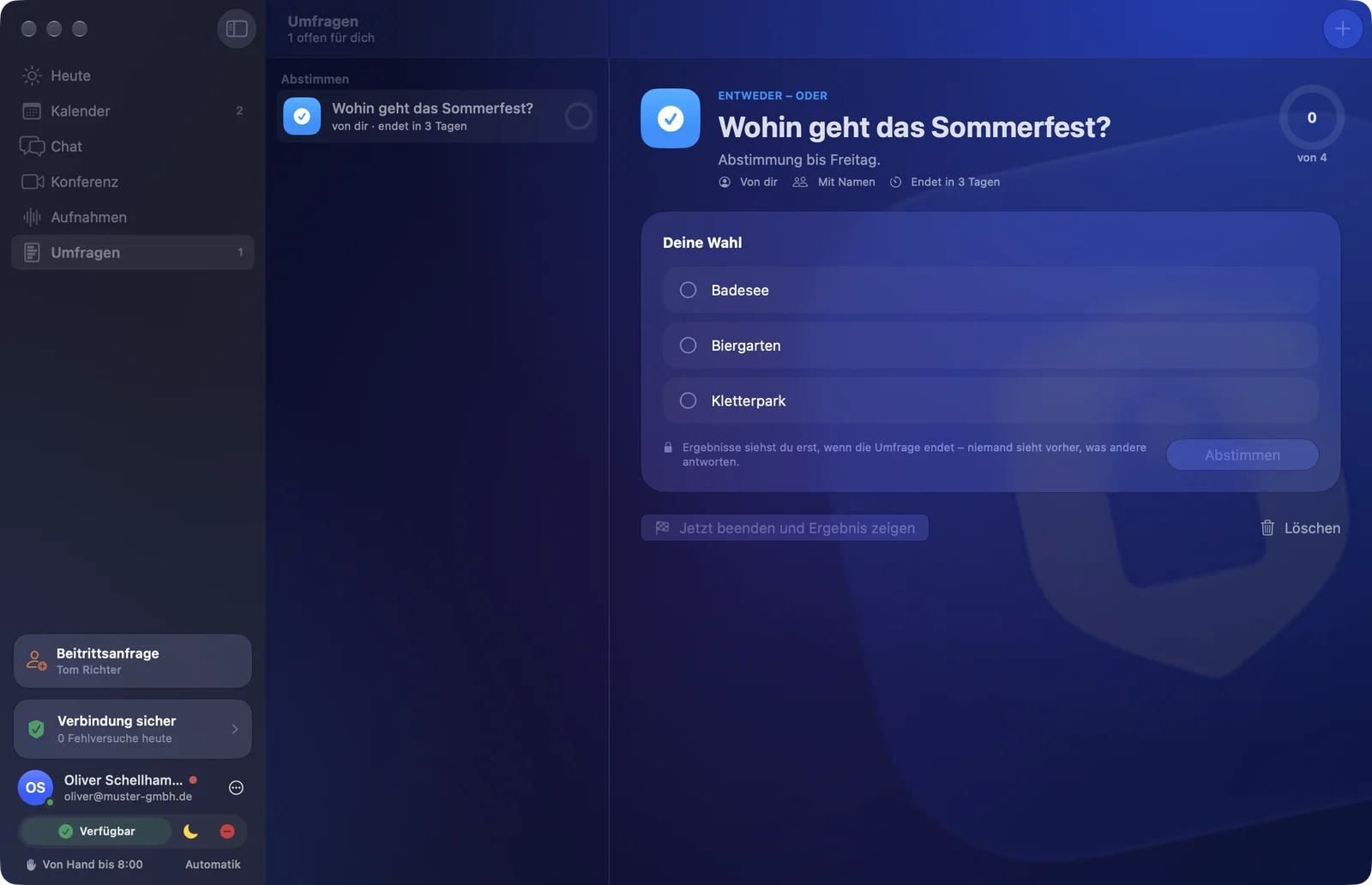
Voting
- Open Polls in the sidebar (the number shows open polls).
- Choose a poll on the left under Vote.
- Make your choice: one option, several ticks, 1 to 5 stars or all dates that work for you.
- Click Vote. With Change answer you can change your mind until the poll ends.
Afterwards you see “Thanks, your answer has been saved.” and when the result will appear for everyone at the same time.
New poll
Click New Poll (⌘N in the Polls area). From a chat you start a poll with Poll, from an event with Poll for Participants.
- Choose the type: Either – or (one answer), Multiple choice, Rating (1 to 5 stars) or Find a date (“When suits everyone?”).
- Write the Question, optionally with details.
- Enter the answer options (Another answer) or, for finding a date, the Suggestions (Another date).
- Who votes? – All colleagues or Selected (tick by department).
- Ends: In 1 hour, Today 6 pm, Tomorrow 12 pm, In 3 days, In 1 week, Choose date or When I end it.
- Anonymous on: the result shows only numbers. Off: the result shows who chose what.
- On the right you see a Preview. Click Start Poll.
Result
When the poll ends, everyone gets the Result at the same time (banner “Result is in”). The winner gets a trophy; for ratings you see the average. For finding a date, you create the winning date straight away with Create as Event.
As the creator, you can end it early with End now and show result, or Delete the poll – it then disappears for everyone, along with all answers.
11. Search
One field for everything: press ⌘K and start typing.
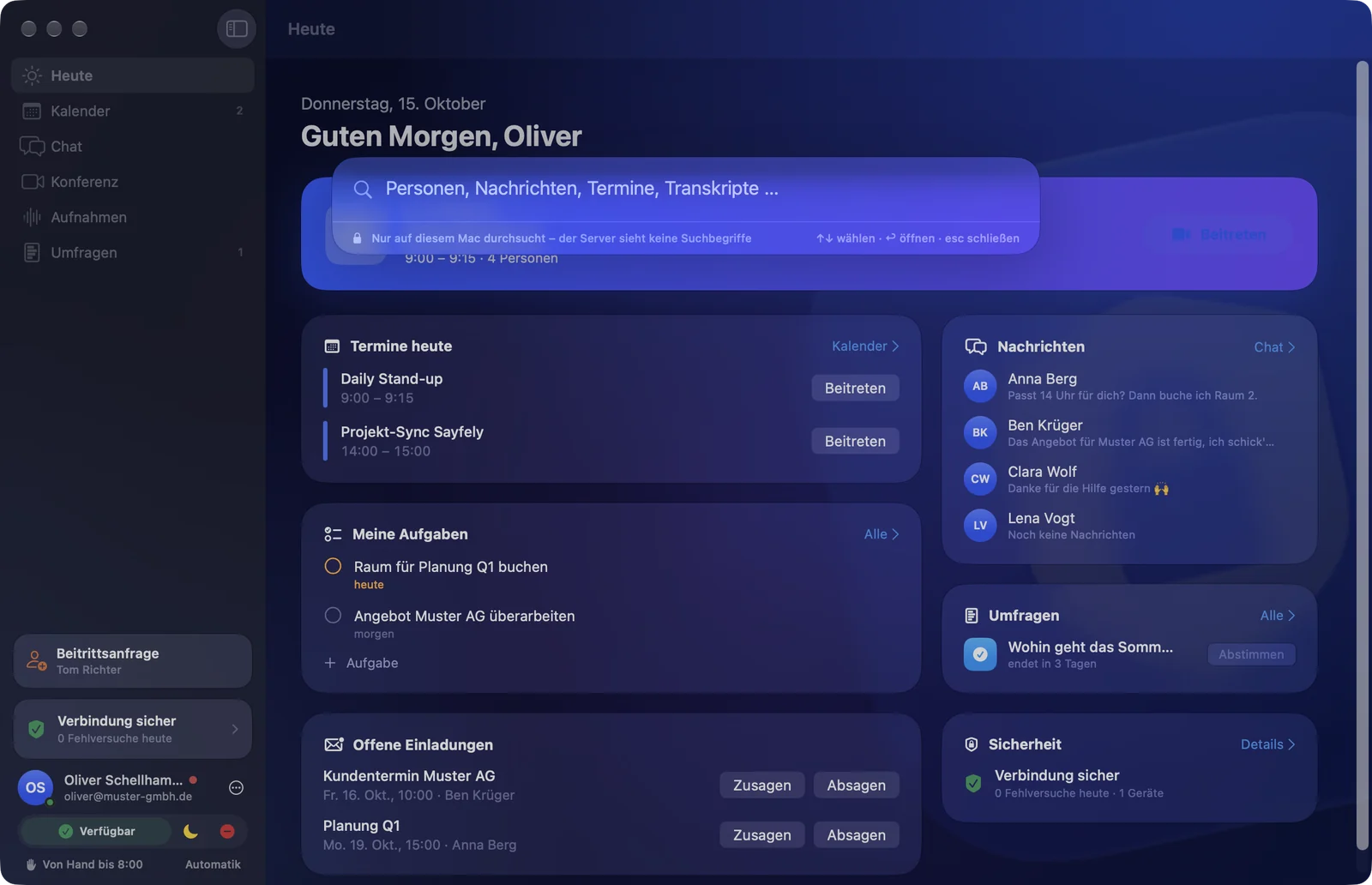
Search covers People, Messages, Events, Documents, Recordings & Transcripts, Polls and Tasks. If you type several words, all of them must appear; upper/lower case and accents don’t matter.
- Press ⌘K (or use the Go menu → Search …).
- Type your search term.
- Choose with ↑/↓, open with ↩. esc closes the search.
A result takes you straight to the right place: to the message in the chat (briefly highlighted), the event, the recording, the poll or the task.
12. Notifications
Sayfely gets your attention at different volumes: Chat is subtle but impossible to miss. The calendar is allowed to nag so you don’t miss a meeting. Calls ring like a phone.
Chat – subtle but impossible to miss
- A short, soft sound (can be turned off).
- A banner “New message from …” – by default without the message text. You can turn on the preview.
- Always visible, even without sound: a count on the Dock icon, a count in the menu bar, a count with a bounce on Chat in the sidebar, and a highlighted row in the people list.
- Focus modes such as “Do Not Disturb” are respected.
Calendar – allowed to nag
| When | What happens |
|---|---|
| 10 minutes before | Banner “Starts in 10 minutes” and a bell sound. |
| 1 minute before | Floating reminder window “Starts in 1 minute” with repeated chiming, the Dock icon bounces, the menu bar icon flashes, plus a banner. |
| At the start | The same with “Starts now”. |
| Invitations and changes | Normal banner with sound. |
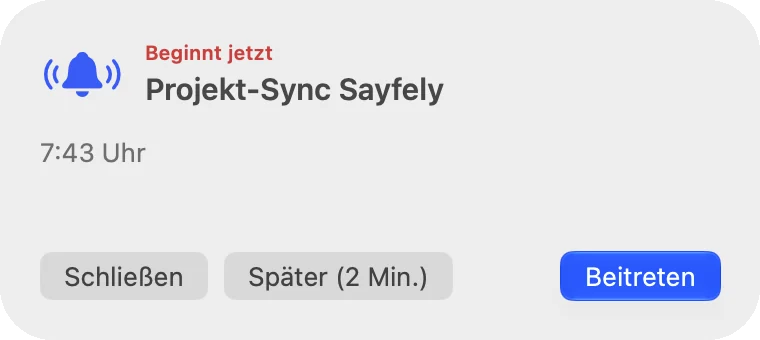
The reminder window sits above all windows and on all desktops (Spaces). It keeps chiming until you press a button:
- Join (↩) – opens the conference.
- Later (2 min) – reminds you again in 2 minutes.
- Close (esc) – ends the reminder.
Calls
An incoming instant conference rings like a phone: its own call window with Accept and Decline, a banner “… is calling”, and a bouncing Dock icon. After 30 seconds without an answer it stops – the call is missed. See Answering a call.
Other notifications
- Polls: “New poll from …” and “Result is in”.
- Tasks: “Due today” or “Task overdue” at 9:00.
- Security: “Security alert” (e.g. sign-in from a new device) with sound; the menu bar icon flashes.
Adjusting and trying them out
In Settings under Notifications, you set for each of Chat, Calendar, Conference and Security: Sound on/off, the Sound choice (Soft (Chat), Bell, Ring, Alert) and Volume; the play icon lets you listen. Under Try It Out you can trigger each notification once as a test: Chat Message, Security Alert, Event in 10 Min, Event Starts Now, Incoming Call.
13. Understanding security
Sayfely always shows you whether everything is secure. Here’s what the indicators mean.
The security card
The security card is always at the bottom of the sidebar. A click opens the Security Center.
| Display | Meaning | What to do? |
|---|---|---|
| Connection secure (green shield) | You’re connected, encrypted, to your company’s genuine server. | Nothing – all good. |
| Connecting … | Sayfely is establishing the connection. | Wait a moment. |
| No connection | The server can’t be reached right now. | See Troubleshooting. |
| Connection blocked (red shield) | The server is presenting a different key. Sayfely sends nothing. | See Connection blocked. |
Below it you see “… failed attempts today”. If there were wrong passwords for your account today, the number is orange. A single typo is harmless – but if you see failed attempts that weren’t you, let your IT know.
The Security Center
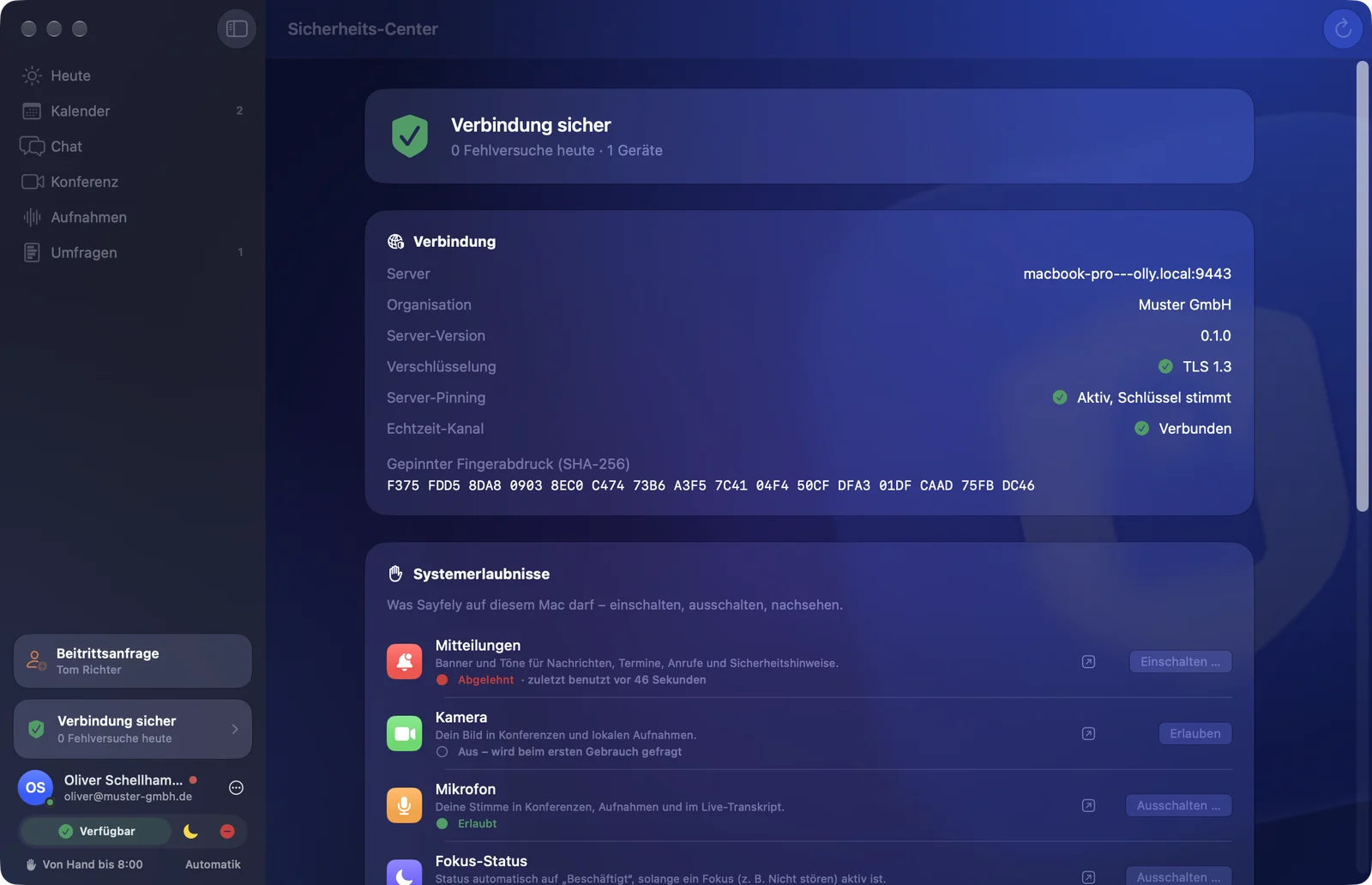
- Connection – server, organisation, server version, encryption (TLS 1.3), Server pinning (“Active, key matches”), real-time channel and the server’s pinned fingerprint. Test connection … measures the route to your server (see Testing the connection).
- System Permissions – what Sayfely may do on your Mac: notifications, camera, microphone, Focus status, open at login, screen sharing, local network, transcription. Allow makes Sayfely ask macOS directly; Turn Off … opens the right place in System Settings.
- Security Events – everything that has happened with your account, filterable by All, Sign-in and Invitations. Each event with time, source (address), device and result.
- My Devices – all Macs with your account. “This device” is the Mac you’re sitting at. You remove an unknown or old device with Remove – it’s signed out immediately.
Possible events include, for example, Wrong password, Account temporarily locked, Sign-in successful, Sign-in from new device, Device removed, Wrong invitation code, Invitation locked and Server certificate changed. The result is shown in colour on the right:
| Result | Meaning |
|---|---|
| Allowed | All fine. |
| Allowed, check | Permitted, but take a look – e.g. a sign-in from a new device. Wasn’t that you? Remove the device, change your password, inform IT. |
| Rejected / Locked | Sayfely or the server prevented the attempt. |
The symbols at a glance
| Symbol | Meaning |
|---|---|
| “Connection secure” (green shield) | Encrypted connection to the genuine company server. |
| Lock “End-to-end encrypted” | Only the people involved can read the content – not the server. |
| Green seal “Verified” | You compared the security code with this person. |
| Orange “Not verified” | Encrypted, but not compared yet. |
| Red “Code changed!” | The person has a new key – please compare again. |
| Red “Recording” | The conference is being recorded. |
| Three check words | Prove when joining that you’re talking to the genuine server. |
| Fingerprint (16 blocks) | The same for another Mac with an existing account. |
Connection blocked
If Sayfely notices that the server is presenting a different key than usual, it blocks the whole window with a red “Connection blocked” warning. This happens when IT has set the server up again – or when someone is trying to get in between. That’s why Sayfely sends nothing.
- Stay calm – your data is protected, Sayfely hasn’t sent anything.
- Ask your IT for a new Sayfely link.
- Paste it into the Paste Link field (or open it from the e-mail). Sayfely checks it and continues without you having to sign in again.
Under Details for IT you see the expected and the current fingerprint. Quit Sayfely closes the app.
What happens to your data
| What | Where it’s stored | Who can read it |
|---|---|---|
| Chat messages and files | Encrypted on the company server | Only you and the person you’re talking to |
| Events (title, agenda, location, documents) | Encrypted on the company server | Organiser and invitees. The server only knows times, people and responses. |
| Tasks | Encrypted on the company server | The people involved. The server only knows the person and the deadline. |
| Recordings, transcripts, analyses | Encrypted on the company server, with retention periods | Only the event’s participants |
| Video and audio in conferences | Transmitted live, end-to-end encrypted | The participants |
| Notes and assistant (“Me”) | Only on your Mac, encrypted | Only you |
| Search terms | Nowhere – search runs on your Mac | Only you |
| Error report to IT | On the company server (30 days) | Your IT. Contains only technical details, no content. |
14. Settings
Open Settings with ⌘,, via the … menu next to your name (Settings…), or via the gear in the menu bar.
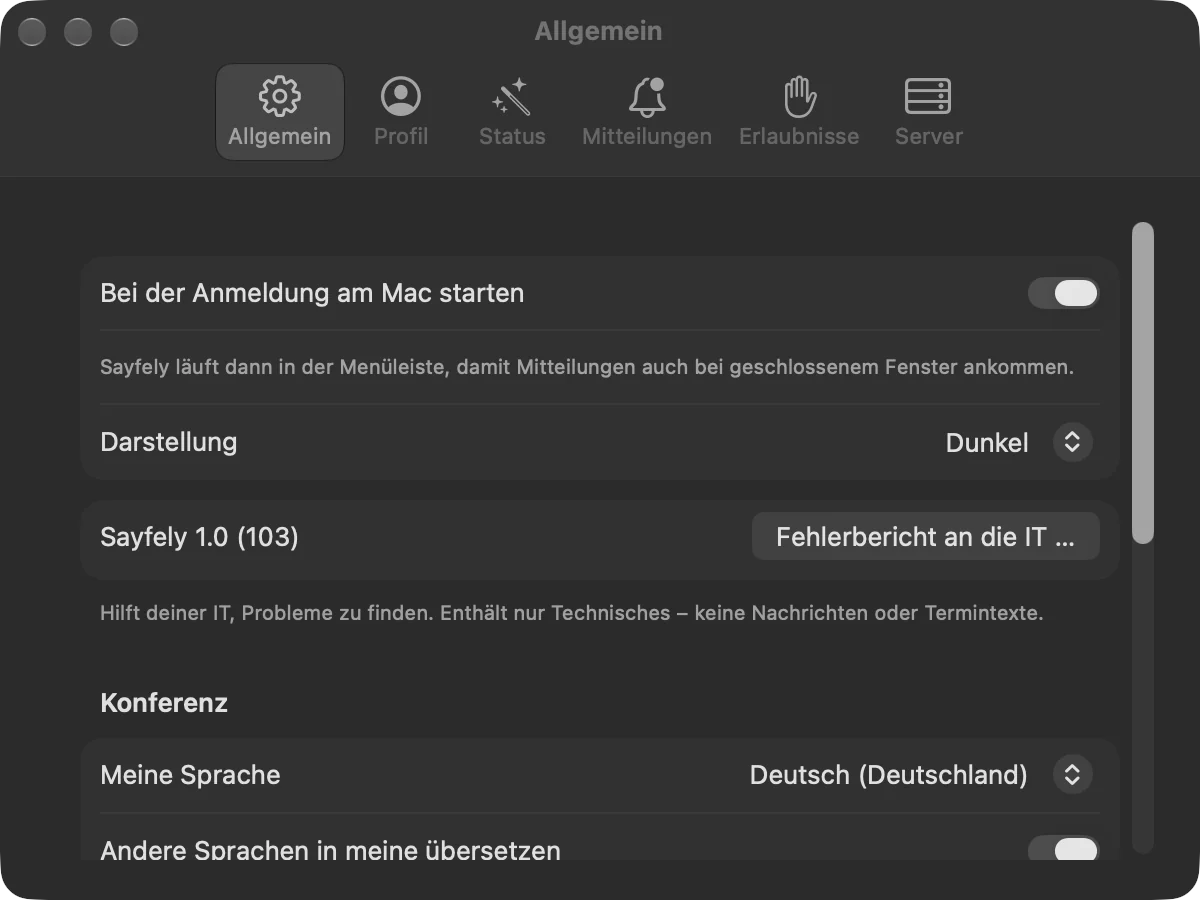
| Tab | What you set there |
|---|---|
| General | Open at login (Sayfely then runs in the menu bar), Appearance (Dark, Light, Like the system), Error report to IT …, under Conference My language and Translate other languages into mine, and under Recordings your company’s retention periods for film, audio, and transcript and analysis. |
| Profile | Change your name (Save Name), view your e-mail and organisation, Change Password (current password, new password, repeat, Change). After the change, your other devices are signed out. |
| Status | Set status automatically with a preview (“Now”, “Next change”). Working Hours: days, times and Break; outside them you’re “Away”. Automatically “Busy”: During calendar events, In conferences and calls, When a Focus like “Do Not Disturb” is on. Away from desk: “Away” when the screen is locked or when you’re inactive for 5, 10, 15 or 30 minutes. |
| Notifications | Sound, sound choice and volume for each area. For Chat: Message preview in banner and Read receipts and “is typing …”. Plus Try It Out. |
| Permissions | All system permissions at a glance (“… of … allowed”), with purpose, status and when last used. |
| Server | Server, organisation, “Signed in as” and fingerprint. Plus Sign Out and Forget Server… (afterwards you need a link again or have to join again). |
15. Keyboard shortcuts
Lots of things are quicker with the keyboard. You can also reach every area via the Go menu.
Everywhere
| Shortcut | Action |
|---|---|
| ⌘0 | Today |
| ⌘1 | Calendar |
| ⌘2 | Chat |
| ⌘3 | Conference |
| ⌘4 | Recordings |
| ⌘5 | Polls |
| ⌘6 | Security Center |
| ⌘K | Search |
| ⇧⌘T | Tasks |
| ⌘, | Settings |
| ⌘? | Open this manual |
Calendar
| Shortcut | Action |
|---|---|
| ⌘N | New event |
| ⇧⌘F | Find a Time |
| ⌘T | Jump to today |
| ⌘← / ⌘→ | Previous / next week or month |
| ⌘J | Join (in the event file) |
| ↑ / ↓ | Move the selected event 15 minutes earlier / later |
| ← / → | Move the selected event one day earlier / later |
| ⌫ | Cancel your own event (with confirmation) |
| ⌘Z | Undo move |
Chat and “Me”
| Shortcut | Action |
|---|---|
| ↩ or ⌘↩ | Send |
| esc | Cancel replying or editing |
In a conference
| Shortcut | Action |
|---|---|
| ⇧⌘D | Mute / unmute microphone |
| ⇧⌘E | Camera on / off |
| ⇧⌘F | Video effects |
| ⇧⌘S | Share screen / stop sharing |
| ⇧⌘H | Raise / lower hand |
| ⇧⌘R | Record / stop (if you’re allowed to record) |
| ⇧⌘Z | Show / hide consents |
| ⇧⌘U | Show / hide documents |
| ⇧⌘T | Show / hide transcript |
| ⇧⌘W | Leave conference |
More
| Where | Shortcut | Action |
|---|---|---|
| Search | ↑ ↓ · ↩ · esc | Choose result · open · close |
| Recording | Space bar | Play / pause |
| Task list | ⌘N | New task |
| Polls | ⌘N | New poll |
| Reminder window | ↩ · esc | Join · Close |
| Dialogs | ↩ · esc | Confirm · Cancel |
16. Troubleshooting
The most common questions – and what helps.
The Help menu contains Sayfely manual (⌘?, opens this manual), for admins also Admin manual, plus Test connection … and Error report to IT …. In the Sayfely menu, About Sayfely shows the version of the app and the server, links to the manual, sayfely.com and what’s new, and the open-source components used.
“Server not reachable” or “No connection to the server”
At the top of the window you see “No connection to the server of …” (or, when starting up, a full screen “Server not reachable”). Sayfely keeps trying on its own; your content remains readable.
- Are you on the company network (the office Wi-Fi)? From outside it only works if your IT has set up Access from the internet in the server app – Sayfely then switches to that address by itself, and back as soon as you’re in the office again.
- Click Try again.
- If that doesn’t help: Restart Sayfely.
- Still nothing? Maybe the server is switched off. Let your IT know and send them an error report (without a connection: Save as file …).
Sayfely can’t find the server at the office – allow “Local Network”
macOS must allow Sayfely to search the local network. On the very first launch, this often only works after restarting Sayfely.
- Open System Settings → Privacy & Security → Local Network.
- Turn on Sayfely.
- Restart Sayfely. If Sayfely shows the message “No connection. Is the Mac on the network? …”, there’s a Restart Sayfely button right there.
You can also check the status in the Security Center under System Permissions → Local Network.
The microphone or camera doesn’t work in a conference
- If you see “The microphone is blocked for Sayfely.” or “The camera is blocked for Sayfely.”, click Allow in System Settings and turn Sayfely on there.
- Or: Security Center → System Permissions → Microphone or Camera → Allow or Turn On ….
- Use the small arrow on Mute or Camera Off to check that the right device is selected (e.g. a headset instead of the built-in microphone).
- Without a camera, you simply take part with audio (“No camera found – you’re joining with audio.”).
Screen sharing doesn’t work
The first time you share, macOS needs permission for screen recording. Open System Settings → Privacy & Security → Screen & System Audio Recording and turn on Sayfely. Then restart Sayfely if necessary. In the Security Center, Check … next to Screen Sharing helps you find the right place.
I don’t get any banners or sounds
- Does Settings show the note “Notifications for Sayfely are turned off in macOS” under Notifications? Then click System Settings and turn them on.
- Is a Focus such as “Do Not Disturb” on? Chat sounds are deliberately suppressed then.
- Is Sound turned on for the area, and is the volume high enough?
- Is Sayfely running? Turn on Open at login so notifications arrive even when the window is closed.
- With Try It Out you can test every kind of notification.
Installing an update
New versions come from your company’s server – not from the internet.
- When Update available appears at the bottom of the sidebar, click it.
- Sayfely downloads the update (“Downloading update …”), checks that it’s genuine and installs it (“Installing …”).
- Sayfely restarts by itself.
If macOS asks about the folder Sayfely is in, confirm it with Install Update. If an update fails, the reason is shown in red on the card – for security reasons, an update that isn’t signed by your Sayfely publisher is never installed. In that case, send an error report to IT.
Testing the connection – is it the server or my line?
If a conference stutters or files load slowly, a connection test helps: it measures the route between your Mac and your company’s Sayfely server – response time, download and upload. Not some server on the internet, but exactly the path that matters for Sayfely.
- Open Help → Test connection … (or click Test connection … under Connection in the Security Center; it only works while you’re connected).
- Click Start test. The test takes about 20 seconds.
- You see whether you’re connected In the company network or Over the internet, plus Response time, Download and Upload with a short assessment. Again repeats the test.
Sending an error report to IT
If something isn’t working properly, an error report helps your IT find the problem.
- Open Error report to IT … – in the Help menu, in Settings under General, or (without signing in) on the start screen under Advanced → Error report ….
- Briefly describe what happened.
- Click Send to IT. Your IT sees the report in the Sayfely Server app under “Diagnostics”.
- Without a connection to the server: Save as file … and pass the file on another way (e.g. on a USB stick).
I forgot my password
Your IT resets it in the Sayfely Server app. Then sign in with the new password and preferably change it right away in Settings under Profile → Change Password.
“Too many failed attempts” – my account is locked
After 5 wrong passwords, the server locks signing in for 15 minutes. Sayfely shows until when. Wait until then and try again calmly. If the failed attempts weren’t yours, let your IT know.
“Connection blocked” – the server key has changed
See Connection blocked: ask your IT for a new Sayfely link and paste it in.
Old messages are missing on my new Mac
Messages are encrypted for the devices that existed when they were sent. A new Mac therefore can’t read older messages and shows “This message was encrypted before this device signed in”. That’s intentional and protects your conversations.
A person’s security code has changed
Usually the person has a new Mac. Compare the code again – by phone or in person. If it doesn’t match, don’t send anything confidential for now and let your admin know.
The assistant or “Suggest Agenda” doesn’t respond
Both need Apple Intelligence on your Mac. Turn it on under System Settings → Apple Intelligence & Siri. Right after you turn it on, macOS is still downloading the language model (“Apple Intelligence is still loading its language model. Almost there.”).
There’s an unknown device in “My Devices”
- In the Security Center, click Remove next to the device and confirm.
- Change your password (Settings → Profile).
- Inform your IT.
17. Glossary
| Term | Explanation |
|---|---|
| Apple Intelligence | Apple’s AI that runs directly on your Mac. Sayfely uses it for the assistant, agenda suggestions and analyses. |
| Check words | Three words that must be the same on your Mac and at IT when you join. |
| Consent log | A list for each recording: who agreed, declined or withdrew, and when. |
| Department | Your group in the company (e.g. Sales). Sorts the people lists; each department has its own colour. |
| End-to-end encryption | Content is encrypted on your Mac and only decrypted by the recipient. In between – including on the server – it’s unreadable. |
| Event file | Everything about an event in one place: agenda, documents, join, recording, tasks. |
| Failed attempt | An unsuccessful sign-in, e.g. with a wrong password. Shown in the Security Center. |
| Fingerprint | A kind of ID number for the server (16 blocks). If it changes, Sayfely warns you. |
| Focus | The macOS “Do Not Disturb” feature and similar modes. Sayfely respects them. |
| Instant conference | A spontaneous video call – the people you call hear it ring. |
| Join request | Your request for an account at the office. An admin approves it after comparing the check words. |
| Live transcript | A real-time written record of a conference while a recording is running. |
| Menu bar | The bar at the very top of the screen. Sayfely sits there even when its window is closed. |
| Pinning (server pinning) | Sayfely remembers the server’s key the first time it connects and from then on only accepts that key. |
| Retention period | How long the film, audio and transcript of a recording are kept. Set by IT. |
| Sayfely link | A link starting with sayfely:// – from an invitation or from IT. It connects you securely to the right server. |
| Sayfely server | Your company’s computer (usually a Mac mini in the office) that Sayfely runs through. |
| Security Center | An overview of your connection, permissions, security events and devices. |
| Security code | 16 digits per contact that you compare to make sure nobody is listening in. |
| Status | Available, Away or Busy – visible to your colleagues. |
| TLS 1.3 | The modern encryption of the connection between your Mac and the server. |
| Transcript | The written version of what was said, with speaker and time. |
| Verified | You compared the security code with a person and it matches. |
Questions not answered here? Contact your IT – they’ll find help in the admin manual.