 Sayfely Manual
1. Overview
Sayfely is your company’s secure communication: calendar, chat and conferences. Everything runs on your own server right there in the office – no cloud, no third-party services, no telemetry.
The server is a perfectly ordinary Mac app: Sayfely Server. You install it on a Mac that’s always on, for example a Mac mini in the office. The app brings everything it needs along – the database (PostgreSQL), the conference server (LiveKit) and the Sayfely Server itself. You don’t have to install anything else: no Homebrew, no command line.
Your colleagues install the Sayfely app on their Macs. They get it straight from your server via a small download page. The apps connect to your server over an encrypted connection.
Your tasks as an admin
- Once: prepare the server Mac, set up Sayfely Server, set up backups, define deletion periods for recordings.
- Ongoing: approve or invite new people, manage accounts (reset passwords, lock, delete), install updates.
- Every now and then: take a look at security events, storage, backups and error reports.
Three basic ideas you should know
| Idea | What it means for you |
|---|---|
| The server sees no content | Chat messages, files, event titles, notes, locations and recordings are end-to-end encrypted. Even you as an admin can’t read them in the server app. You only see when, who and how big – never what. |
| The server has a key with a fingerprint | Every Sayfely app remembers your server’s key the first time it connects (“pinning”). If a different key shows up later, the app blocks. That way nobody can slip in between unnoticed. This is why backing up the key matters so much (see Backup). |
| Nobody gets in without you | Internal people only join through approval by an admin (after comparing three check words) or through an invitation with link and code. |
2. Requirements
One Mac, a company network, a few free ports – that’s all it takes.
The server Mac
- macOS 26 or later. The server app won’t start on older systems. The same applies to the Sayfely app on your colleagues’ Macs.
- A Mac that’s always on, typically a Mac mini in the office. A laptop that goes home in the evening isn’t suitable.
- On the same network as the workstations. Ideally wired. The Macs find the server automatically as long as they’re on the same network.
- Enough free storage. You need space for the database, encrypted files and recordings. Recordings with video take up the most. The server app shows usage under Overview → Operations → Storage and warns you when less than 10 % is free.
- A place for backups, ideally an external drive or a network drive (see Backup).
- A user account on the Mac that the server runs under. The services run as background services of this signed-in user (see Preparing the Mac).
Ports
These are the ports Sayfely uses. The values are the defaults; you can see which ones apply to you in the server app under Settings → Network → Ports.
| Port | Protocol | Used for | Reachable from |
|---|---|---|---|
8443 | TCP (HTTPS, WebSocket, TLS 1.3) | Sayfely Server: sign-in, chat, calendar, files, live connection | Company network |
7883 | TCP (TLS 1.3) | Conference control (in front of LiveKit, with the same key as the server) | Company network |
7881 | TCP | Conference: video and audio (fallback route) | Company network |
7882 | UDP | Conference: video and audio | Company network |
8080 | TCP (HTTP) | Download page for the Sayfely app. If 8080 is already taken, the app automatically picks the next free one of 8444, 8081, 8090, 18080 (otherwise 18081) during setup. | Company network |
7880 | TCP | LiveKit internal (reachable from outside only via 7883) | This Mac only |
54329 | TCP | PostgreSQL database | This Mac only |
3478 | UDP | Conference: video and audio via relay (TURN) – only with access from the internet | Internet |
18450, 17880, 17881, 17882/UDP | TCP/UDP | Only during a load test | Company network |
SayfelyServer and livekit-server may accept incoming connections: choose Allow. Otherwise the other Macs can’t reach the server, or conferences stay silent.Preparing the server Mac
Sayfely’s services run as background services of the signed-in user. They keep running when the server app’s window is closed and start on their own after login. To make sure the server comes back after a power cut or an update, set up the Mac like this:
- Turn on automatic login (System Settings → Users & Groups). The server app recommends this too, under Settings → Maintenance. Note: with FileVault, macOS still asks for the password once after a restart.
- Prevent sleep: in the energy settings, make sure the Mac never goes to sleep automatically and starts up automatically after a power failure.
- Give it a fixed name: System Settings → General → Sharing → Local hostname, e.g.
mac-mini-buero. The other Macs find the server under this name (mac-mini-buero.local) – even if the router hands out a new IP address. - Protect the Mac physically. Anyone sitting at this Mac while it’s signed in can manage every account through the server app. Keep it somewhere lockable and lock the screen.
3. Installation and initial setup
Two fields, one button – and the server is running. Then you add your own Mac and become the first admin.
Setting up the server
- Copy Sayfely Server.app into the Applications folder of the server Mac and open it.
- If the old “Sayfe Server” is still installed on the Mac, you’ll see a notice first. For that, read Switching from the old “Sayfe”.
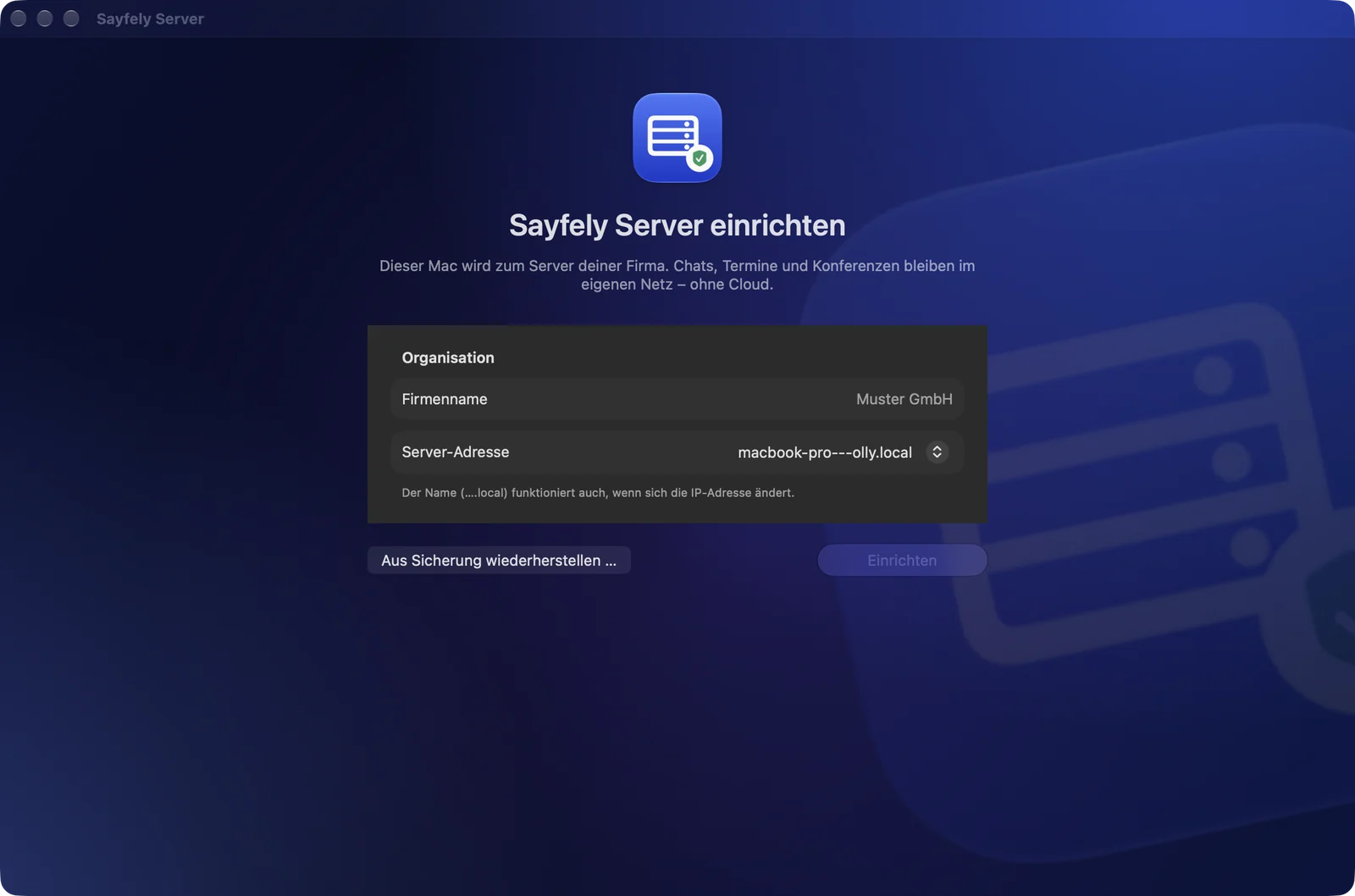
- You’ll see Set up Sayfely Server. Under Organization, enter the Company name, e.g. “Muster GmbH”. It later appears in invitations, on the download page and in the app.
- Choose the Server address. The default is the Mac’s name on the network (e.g.
mac-mini-buero.local). Leave this name as it is – it keeps working even if the IP address changes. Only pick an IP address if the name doesn’t resolve on your network. - Click Set up. The app works through five steps and ticks them off one by one: Create folders and key, Set up database, Issue certificate, Start conference server, Start Sayfely server. If a step fails, it shows a red cross and the reason in a message. Fix the cause (usually a port that’s already in use) and click Try again.
- At the end you’ll see The server is running.
Your own account – you become the first admin
The server is running, but there’s no account yet. The first account on a server always manages it – and that will be you. No e-mail, no link:
- Get Sayfely onto your work Mac. For this, the setup page shows Get Sayfely onto a Mac: a QR code for the download page, the Send download link via AirDrop button and – if you want to work on the server Mac itself – Install and open Sayfely on this Mac. More on this under Getting Sayfely onto the Macs.
- Open Sayfely on your Mac. Sayfely finds the server on the network by itself. Choose Join, enter your name, e-mail and a password (at least 10 characters) and click Send request.
- In the server app, your request appears under Join requests with three words. Your Mac shows the same three words. Compare them. If all three match, click Approve. For the first account, the Admin switch is always on.
- The server app reports “… is in and manages the server.” Click Go to overview.
Your Mac doesn’t find the server?
Both Macs must be on the same network (not the guest Wi-Fi). If it still doesn’t work, expand Your Mac doesn't find the server? on the setup page and click Create invitation …. Invite yourself, with May administer the server (admin) turned on (see Invitation with link and code). If you’re sitting at the server Mac, choose Open in Sayfely Here in the result – link and code are then already filled in.
With Later – to the overview you can also put this step off.
4. The server app at a glance
One window for everything: status, people, recordings, security, diagnostics and settings.
Sidebar
| Item | Contents |
|---|---|
| Overview | Status of the services, traffic, addresses, people, security, operations and backup at a glance |
| People | Accounts, invitations, join requests. The number on the item shows open join requests. |
| Recordings | Deletion periods and list of recordings |
| Security | Security events |
| Diagnostics | Error reports from the apps, diagnostic package, load test, connection tests. The number on the item shows reports from the last 24 hours. |
| Settings | Appearance, organization, network, access from the internet, new people, certificate, backup, version, maintenance |
At the bottom of the sidebar you’ll find your company name with the overall status: Running (green), Starting … (orange), Stopped (gray) or Error (red).
The Help menu opens the Admin manual (this manual) and the User manual. Both are bundled with the app and need no internet connection.
The “Overview” view
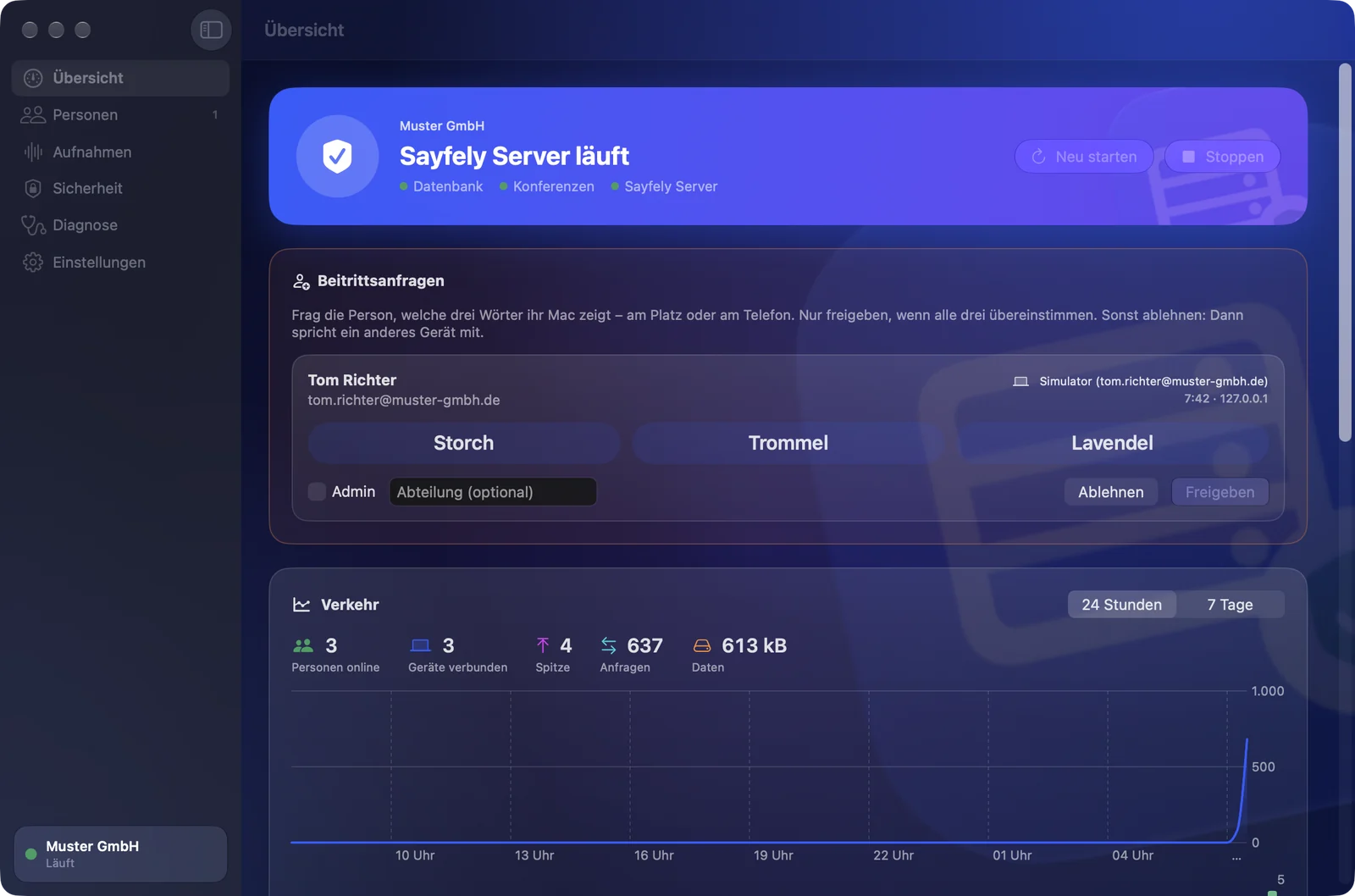
Status panel at the top
The large card shows Sayfely Server is running, Sayfely Server is starting …, Sayfely Server is stopped or A service has a problem. Below it are the three services Database, Conferences and Sayfely Server, each with a colored dot. Clicking a service opens Show log.
The buttons are on the right: Restart and Stop while the server is running; Start when it’s stopped or there’s an error.
Join requests
When a Mac is waiting for approval, an orange Join requests box appears right below the status panel. The Dock icon also bounces briefly. See Joining with three check words.
Traffic
Requests, data volume and connected devices over the last 24 hours or 7 days. Details under Traffic.
How colleagues join
This card contains the QR code and the buttons for the download page, the Copy sign-in link button (see Sign-in link) and, expandable, For IT: address and fingerprint with all server addresses and the Fingerprint of the server key. The fingerprint is only needed by someone who enters the server manually in Sayfely under “Advanced”.
People and security
The People card counts Internal and Invited and has the buttons Invite and Show all. The Security card shows No failed attempts today or the number of attempts, with the Show events button.
Operations
Key figures without any content: Active devices (7 d), Devices total, Messages, Events, Polls, Tasks. Below that, Storage (Sayfely, Other, Free; split into encrypted files and database), the Failed attempts, 7 days chart and the Backup row with the time of the last backup. If there’s no backup or it’s older than two days, the icon turns orange. Depending on the state, you’ll see Back Up Now or Set Up Backup.
5. What runs where
For anyone who wants to know exactly what happens on the server Mac.
Services
The server app starts three background services via launchd (as “LaunchAgents” of the signed-in user). They keep running without an open window, are restarted automatically after a crash and start on their own after login.
| Service in the app | Program | launchd label | Log |
|---|---|---|---|
| Database | PostgreSQL, bound to 127.0.0.1 only | com.softrobots.sayfely.server.database | logs/database.log |
| Conferences | LiveKit (control local only; video and audio via 7881/7882) | com.softrobots.sayfely.server.conference | logs/conference.log |
| Sayfely Server | Sayfely Server with TLS 1.3, download page and TLS access to the conference | com.softrobots.sayfely.server.server | logs/server.log |
| (nightly backup) | Server app without a window, at 2:00 | com.softrobots.sayfely.server.backup | logs/backup.log |
The programs themselves live inside the app (Sayfely Server.app/Contents/Helpers and Contents/Resources/pgsql). The app doesn’t manage accounts over the network but through the command line of the bundled server – with the same rules as the server itself.
Every time you open it, the app checks: are the services running? Does the certificate still match the Mac’s current addresses? Has the app been updated? If needed, it starts the services, reissues the certificate or restarts the server with the new settings. You’ll see this as a short message in the status panel, e.g. Starting server ….
Data folder
All data lives in the user folder under ~/Library/Application Support/Sayfely Server/. You can open it with Settings → Maintenance → Show data folder.
| File / folder | Contents |
|---|---|
config.json | Settings of this installation, including the database password and conference key (readable by the owner only) |
postgres/ | Database (accounts, events without plain text, ciphertexts, events log, key figures) |
certs/ | Server key server-key.pem and certificate server-cert.pem |
files/ | Encrypted files, attachments and recordings |
logs/ | Technical logs of the services (without content) |
livekit.yaml | Conference server settings |
backup.json | Backup settings (the backup password is stored in this Mac’s keychain) |
certs/server-key.pem: if the key is gone, every Sayfely app blocks the connection until it gets a new sign-in link.Certificate, fingerprint and TLS
- During setup, the app creates a server key (P-256). It stays the same forever.
- The fingerprint is a SHA-256 value over the public part of this key. The app shows it in groups of four under Overview → For IT: address and fingerprint and under Settings → Certificate.
- Around the key, the app issues a self-signed certificate (valid for 825 days) – for the Mac’s name,
localhostand all current IP addresses. If an IP address changes, the app quietly reissues it the next time it starts. You can also do this by hand with Renew certificate. The fingerprint stays the same – nobody has to confirm anything again. - All connections to the server use TLS 1.3; the server doesn’t accept older versions. The conference control on port 7883 gets the same protection with the same key.
- The Sayfely apps check the key, not a certificate authority. That’s why you don’t need to buy a certificate.
Visible in the company network
The server announces itself on the local network (Bonjour, service _sayfely._tcp, just like a printer). That’s how a new Sayfely app finds it without entering an address. The announcement contains no secret and isn’t trusted blindly: only the three check words or the fingerprint in the link prove that it really is your server.
6. Bringing people on board
There are three ways. In the office, joining is the easiest. For colleagues outside the office there’s the invitation with link and code. Anyone who already has an account and is setting up a new Mac gets a sign-in link.
| Situation | Way | Who can start it |
|---|---|---|
| New colleague in the office | Join + three check words | The person themselves; only admins can approve |
| New colleague working from home or at a branch | Invitation with link and code | Admins (server app or Sayfely app) |
| Existing account, new or reinstalled Mac | Sign-in link | Admins |
Getting Sayfely onto the Macs
The server itself offers the matching, Apple-notarized Sayfely app for download – on its own small page at http://<server-name>:8080/ (you can see the exact port under Settings → Network → Ports, entry Download).
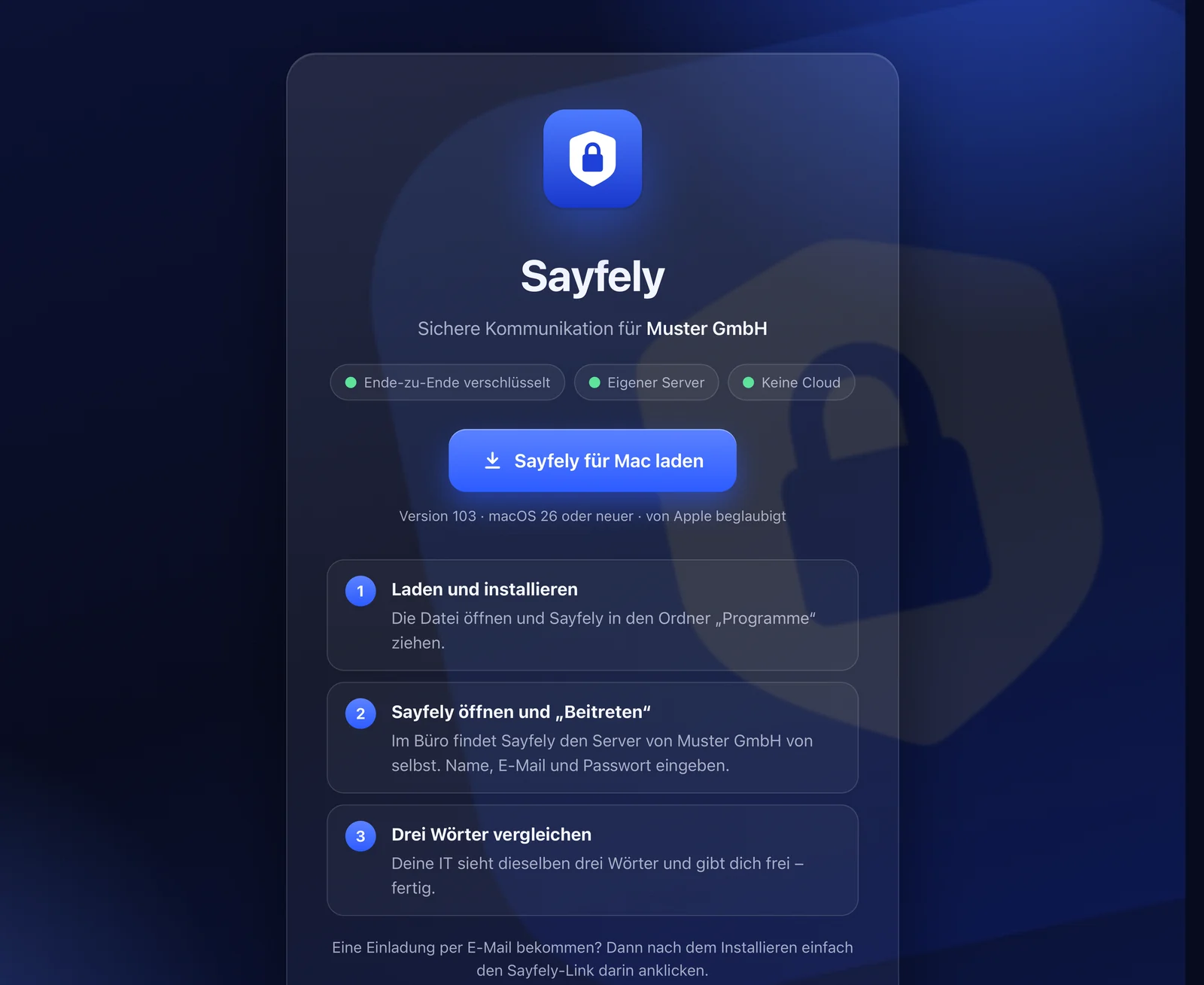
The page shows your company name, the Download Sayfely for Mac button, the version and three steps: Download and install, Open Sayfely and choose “Join”, Compare three words. On an iPhone, it explains how to send the page to the Mac via AirDrop.
The server app (in the overview and during initial setup) gives you three helpers for this:
- QR code: scan it with an iPhone and send the page to the Mac via AirDrop.
- Send download link via AirDrop: the receiving Mac opens the download page directly.
- Install and open Sayfely on this Mac: for you at the server Mac. Sayfely is copied to Applications and opened.
Joining with three check words
This is how colleagues in the office join – no e-mail, no link, no code.
What the person does
- Install and open Sayfely. Sayfely looks for the server on the network and shows Found in your network.
- Choose Join, enter first and last name, e-mail and a password (at least 10 characters), then Send request. The e-mail address later becomes the user name.
- Sayfely shows Waiting for approval and three words.
What you do
- The request appears in the server app (in the Overview and at the top of People, with a number in the sidebar) and for all admins in the Sayfely app (a Join request card in the sidebar, plus a notification). For each request you see the name, e-mail, the Mac’s name, the time, the network address and three words.
- Ask the person which three words their Mac shows – at their desk or on the phone. Don’t read your words out to them; have them tell you theirs.
- If all three match: set Admin and Department if needed and click Approve. If even one word differs: Decline and confirm.
- After approval, Sayfely signs the person in by itself. Finally, their app asks once more whether you told them exactly these three words (Yes, all three match / No, different words).
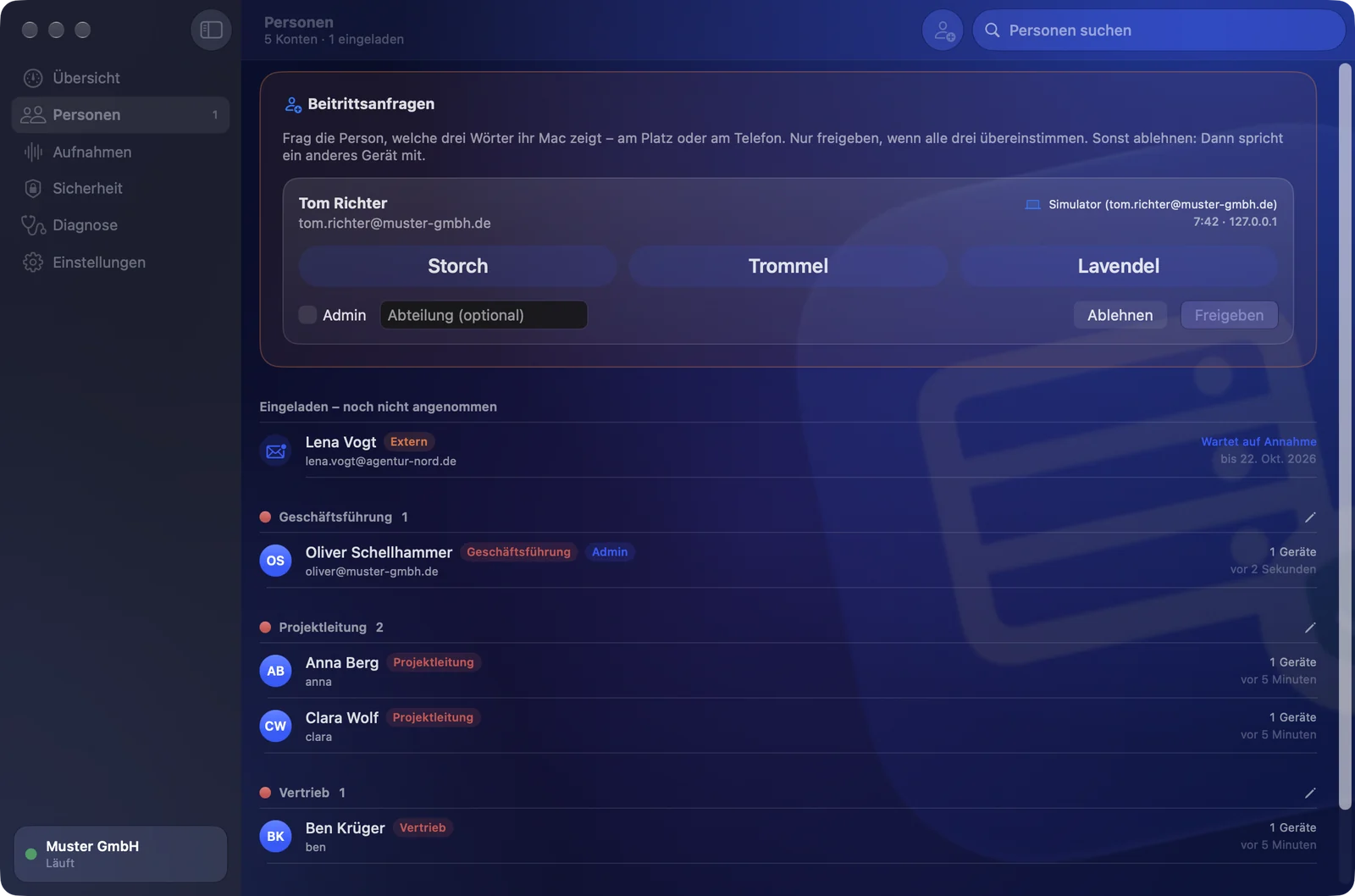
Admins can answer requests in their own Sayfely app just the same – handy when you’re not at the server Mac. Clicking the Join request card in the sidebar opens Join requests with the same words, Admin, Department, Decline and Approve.
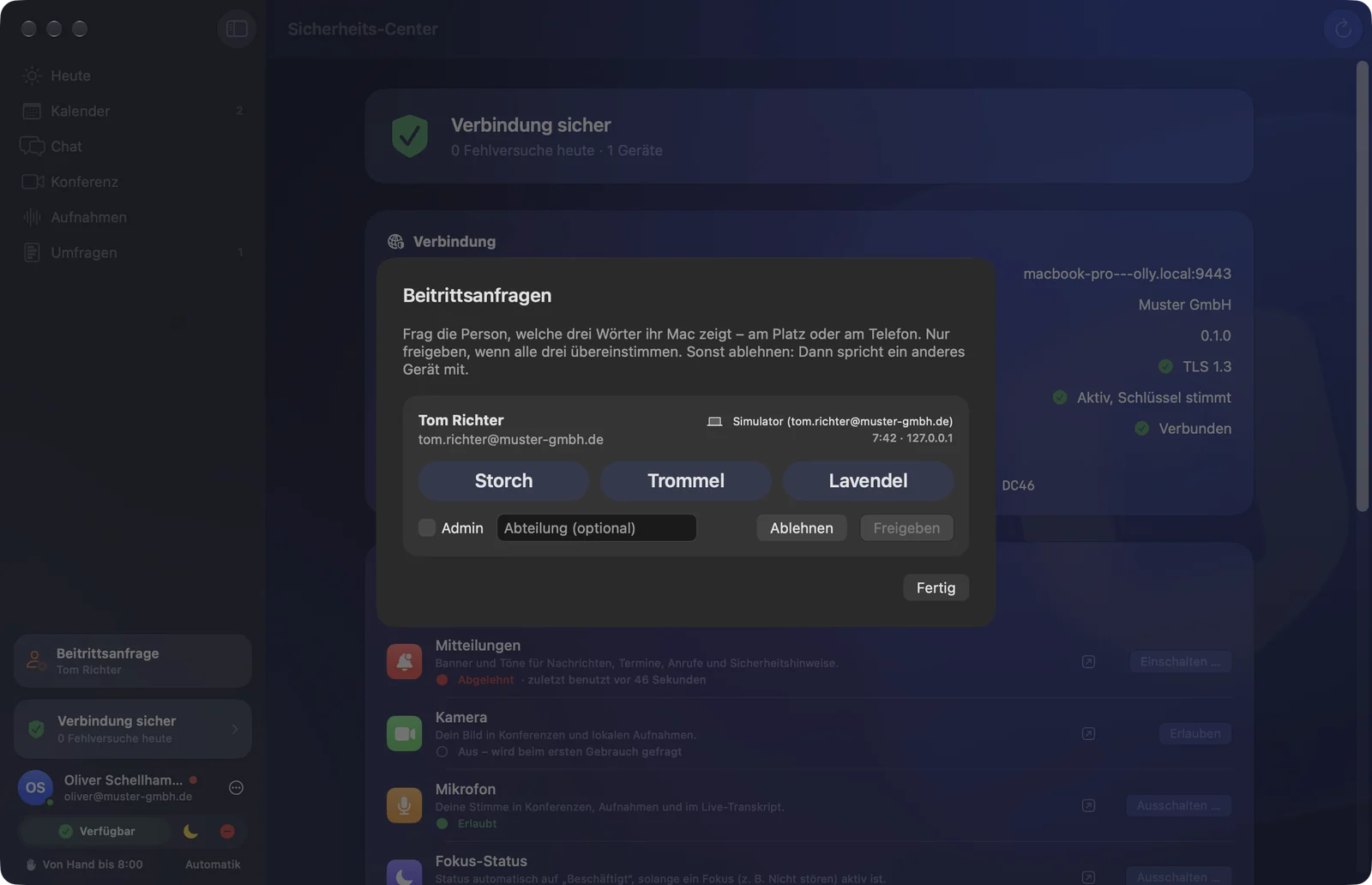
Why the comparison matters so much. The three words are calculated independently on both sides – from the fingerprint of the server key, the keys of the requesting Mac and one random number each from the server and the Mac. If they match, two things are proven:
- The person’s Mac really is talking to your server and not to a device that has slipped in between on the network. The words replace checking the long fingerprint.
- The request you’re approving really comes from this Mac and not from someone jumping the queue with the same e-mail address.
The Mac commits to its random number before it knows the server’s. A device in between therefore has exactly one attempt and would have to guess the words – the odds are about 1 in 134 million (27 bits). If you approve without comparing the words, you throw this protection away.
The words are always German, even if an app is set to English – so both sides see the same thing.
Rules for join requests
- Only admins approve. The very first account on a server always becomes an admin.
- Origin: by default, the server only accepts requests from the company network (private address ranges). You can change this under Settings → New people → Join requests: Only from the company network, Also from the internet or Off – invitations only.
- Validity: a request stays valid for 7 days. The person can close Sayfely in the meantime; after approval, the app signs in by itself. With Withdraw request they can end the request themselves.
- Limits: at most 30 open requests in total and 5 per network address. If the same Mac asks again, the new request replaces the old one.
- Password: until approval, the server only stores a bcrypt hash of the password. After approval, rejection or expiry, this is removed too.
- Log: request, approval and rejection are security events.
- If an account already exists for the same e-mail address, the request is rejected. An open invitation for the same address becomes invalid on approval.
Invitation with link and code
For colleagues who aren’t in the office (or whose Mac can’t find the server). The link arrives by e-mail, the 6-digit code by a second route. Anyone who only intercepts the e-mail can’t do anything with it.
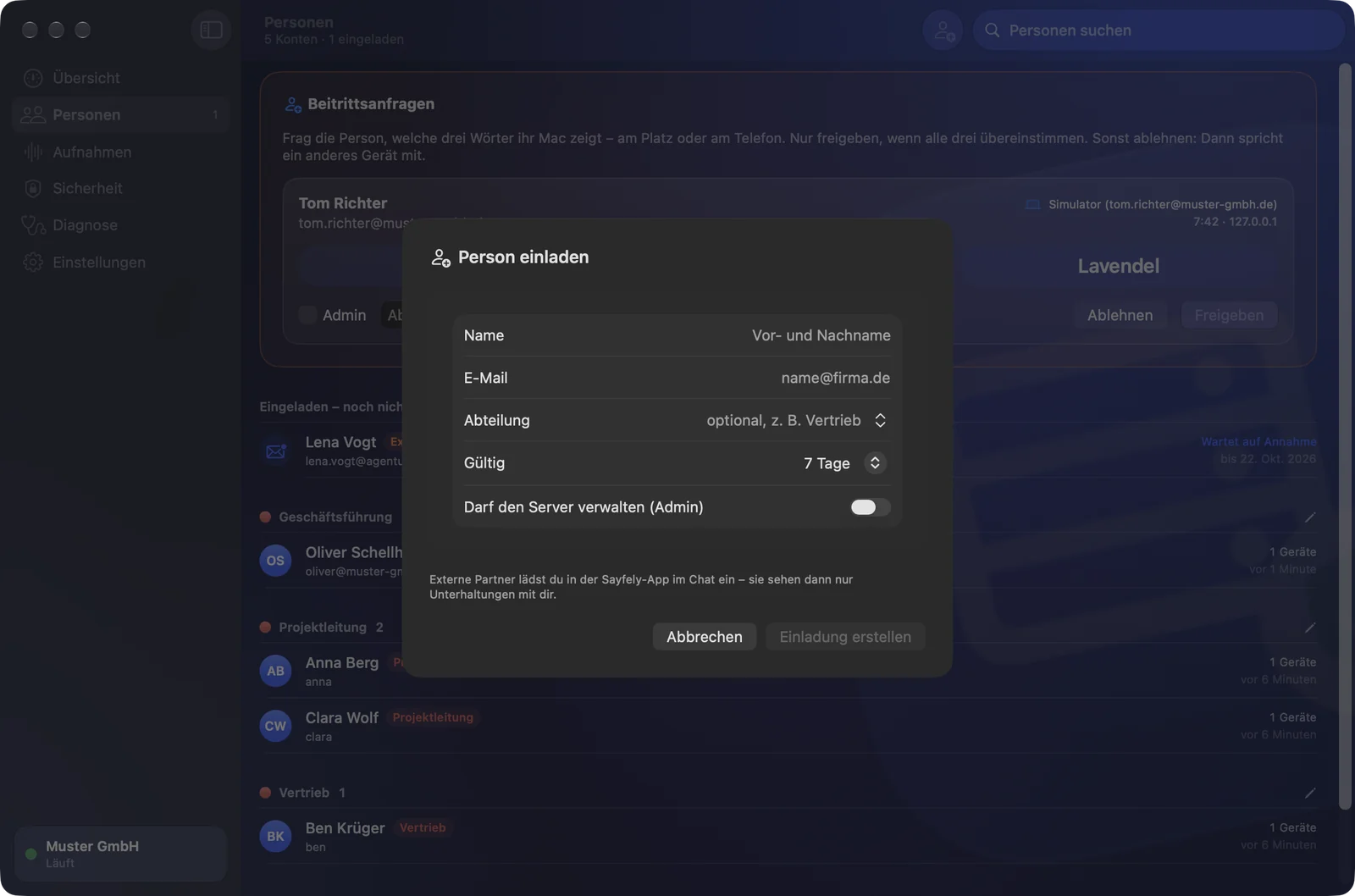
- In the server app, go to People → Invite (or use the People card in the overview).
- In the Invite person window, fill in: Name, E-mail, optionally Department (existing departments are in the menu next to it), Valid for (1 day, 3 days or 7 days) and, if needed, May administer the server (admin).
- Create Invitation.
- 1. Send the e-mail: Write E-mail opens your mail app with a ready-made text: the app’s download link, the invitation link and how long it’s valid. Alternatively, Copy Link.
- 2. Tell them the code in person or on the phone: the 6-digit code is shown in large type in the window. Don’t put it in the same e-mail. It’s only shown now.
- Done.
The invited person installs Sayfely, clicks the link in the e-mail and lands on “Hello …!”. Sayfely has already checked the server address and key from the link (Server verified and securely connected). They enter the code, choose a password and click Get Started.
If the person is sitting at this very Mac (e.g. you yourself at the server Mac), choose Open in Sayfely Here in the result: Sayfely opens with link and code already filled in.
Open invitations
Under People they’re at the top in the Invited – not yet accepted section, with a status: Waiting for acceptance (with expiry date), Locked (5 wrong codes) or Expired. Right-click for:
- Create new link and code – the old invitation becomes invalid, the new one is valid for 7 days. Useful if the code was forgotten or the invitation has expired or been locked.
- Revoke invitation – the invitation becomes invalid immediately.
Sign-in link for a new Mac
For everyone who already has an account: a new Mac, a reinstalled Mac, a reset app – or when an app blocks because the server key has changed. The link contains the server address, fingerprint and company name, but no secret. The person still has to sign in with their password.
- People → right-click the person → Send Sign-In Link by E-Mail…: opens your mail app with a ready-made text (app download, link, “Sign in with your password”). Or Copy Sign-In Link.
- In the Overview there’s Copy sign-in link – a general link without a user name.
When a person signs in on a new Mac, the security event New device is created (with a warning), which their other devices also see live. A session lasts 30 days.
7. Managing people
Rename accounts, assign departments, reset passwords, lock, delete and choose admins.
The “People” list
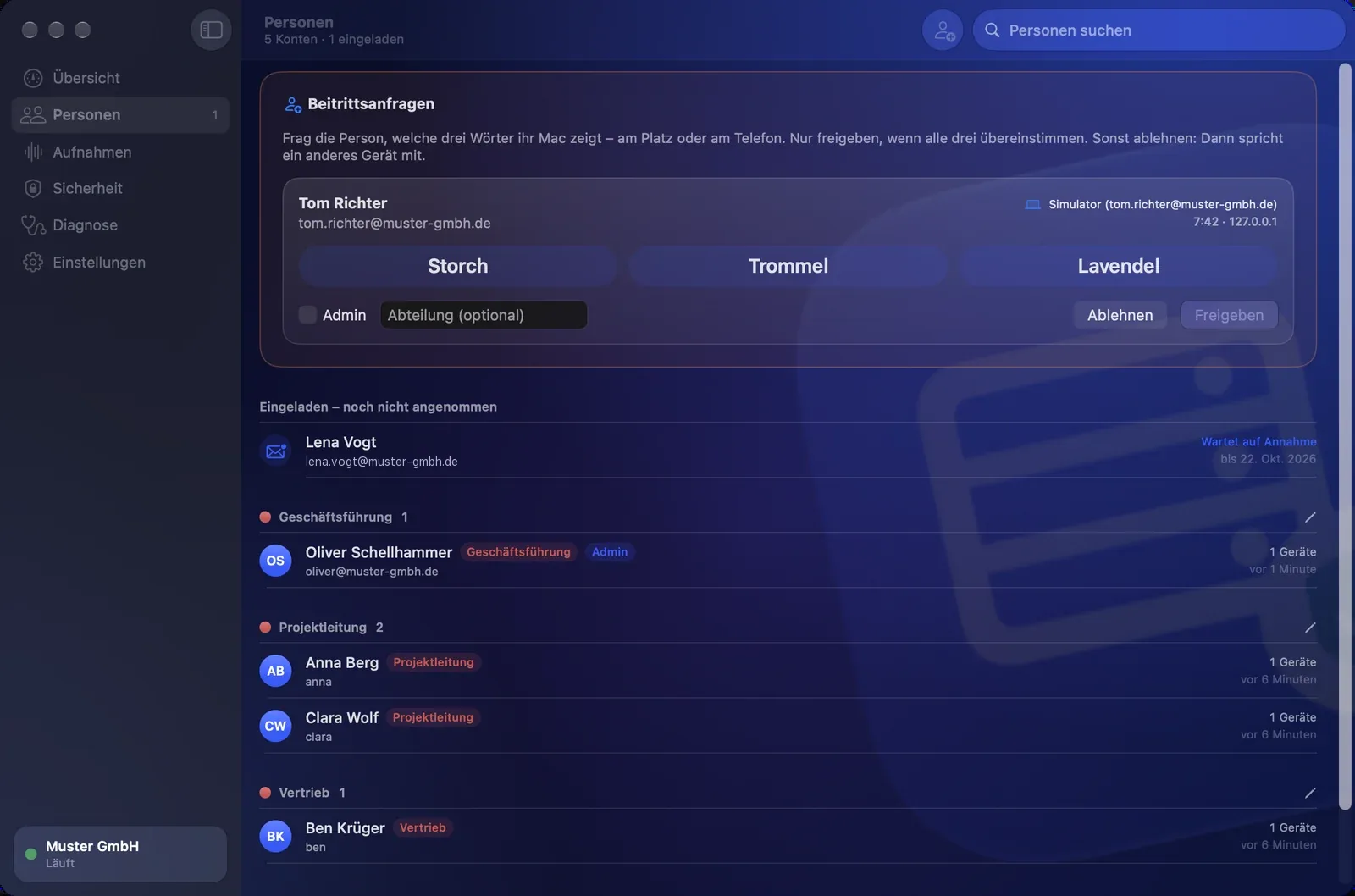
The list is organized like this:
- Join requests (only if there are any open)
- Invited – not yet accepted
- Everyone by department, alphabetically; No Department last
Each row shows the name, department, the Admin and Locked tags, the e-mail, the number of devices and when the person was last active (or Never active). At the top right, Search people filters by name, e-mail or department. The list refreshes every 10 seconds.
Actions per person (right-click)
| Menu item | What happens |
|---|---|
| Send Sign-In Link by E-Mail… Copy Sign-In Link | See Sign-in link. |
| Rename … | Changes the display name (Change display name → Save). This is how the person appears to everyone else. The e-mail address stays as the user name. |
| Department … | See Departments. |
| Reset password | The server generates a new random password and shows it to you once (Copy, Done). All of the person’s devices are signed out. Pass the password on in person or by phone, not by e-mail. |
| Make admin / Remove admin rights | See Roles. |
| Lock / Unlock | Locking ends all sessions immediately (open connections are cut within about 20 seconds) and prevents new sign-ins. Data is kept. Good for when someone leaves, a Mac is lost or something seems suspicious. |
| Delete … | After confirming with Delete permanently: the account, devices, conversations and the person’s own events are removed from the server. This can’t be undone. The last admin can’t be deleted. |
Departments
Departments keep the lists in Sayfely tidy: in Chat, when inviting people to events and for instant conferences, people are sorted by department. Each department automatically gets a color that’s the same in the server app and in all apps.
- One person: right-click → Department …, enter a name or pick one under Existing, Save. No Department removes the assignment.
- Several people: select them with ⌘-click, then right-click → Department for … people ….
- Rename or move a whole department: the pencil icon next to the department heading.
- You can also set the department right when approving or inviting someone.
Roles and admins
| Role | Can |
|---|---|
| Admin | Everything a person without admin rights can do, plus: approve or decline join requests in the Sayfely app, invite colleagues, delete any recording. |
| Colleague | Chat with all colleagues, events, conferences, recordings of the events they took part in. |
- The first account on a server always becomes an admin.
- You become an admin when being approved (Admin switch), when being invited (May administer the server (admin)) or later via Make admin.
- There must always be at least one admin: you can’t remove the rights of the last one, and they can’t be deleted.
8. Updates
You only update the server app. The Sayfely apps in the office then fetch their update from your server by themselves.
Updating the server app
- Get the new Sayfely Server.app (or its .zip file).
- In the server app, open Settings → Version section. It shows the installed version of Sayfely Server and the bundled Sayfely app for colleagues.
- Drag the new app or the .zip file onto this section – or click Install New Version… and select it.
- The app checks the update (Checking update…): is it really a Sayfely Server app? Is it newer than the installed version? Is it signed by the same publisher and notarized by Apple? If any check fails, nothing is installed and you’re shown the reason.
- Then it stops the services, replaces itself in the same place and restarts (Installing update…). The new version starts the services again.
Sayfely apps in the office
Every server app brings along the matching Sayfely app for your colleagues. If it’s newer than the one they have installed, the Update available card appears in their sidebar – “New Sayfely version from your server”. One click downloads the update over the verified, encrypted connection, checks the signature, publisher and Apple notarization, replaces the app and restarts it. An older version is never installed.
New Macs always get the current version via the download page.
9. Recordings and GDPR
Recordings are personal data. Sayfely only records with consent, stores everything end-to-end encrypted and deletes it after the periods you set.
Consent and access
- Who starts it: the organizer of a conference. A notice stays visible to everyone the whole time.
- Consent: recording only starts once everyone present has answered. Anyone who declines, doesn’t answer or withdraws later isn’t recorded from that point on – no audio, no video, no transcript. Everyone sees “Not recorded: …”. People who join later are asked. Every decision is listed with its time in the recording’s consent log (encrypted, exportable).
- Transcript: created on the organizer’s Mac, per voice, with Apple’s on-device speech recognition. Nothing leaves the company network for this.
- Storage: video, audio, transcript and analysis are stored end-to-end encrypted on your server.
- Access: only the participants of the event or instant conference. Even you as an admin can’t open a recording in the server app.
Setting deletion periods
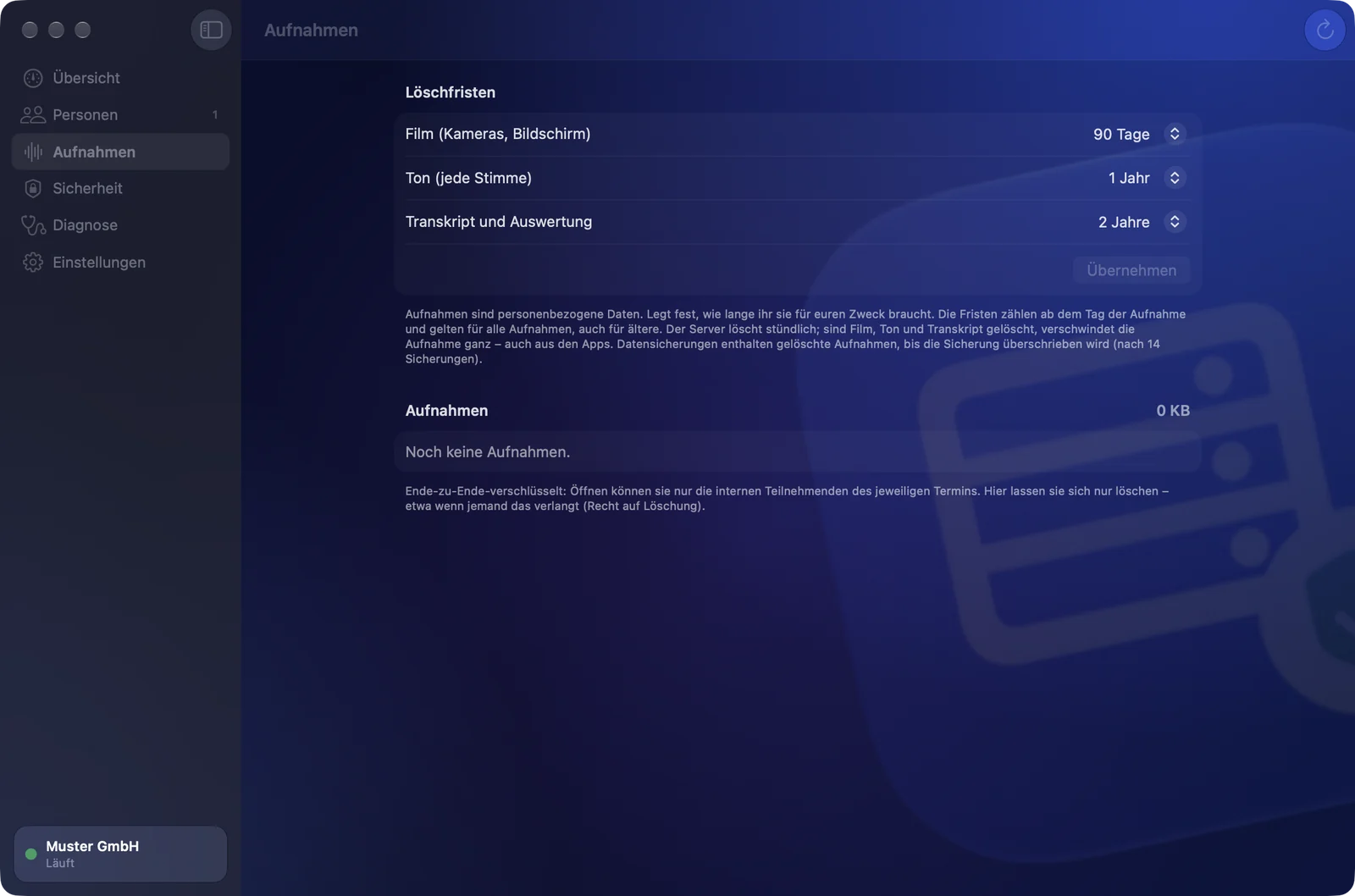
Under Recordings → Deletion periods you set three separate periods. This is your deletion policy in the sense of the GDPR (storage limitation): choose periods as short as your purpose allows.
| Field | Default |
|---|---|
| Video (cameras, screen) | 90 days |
| Audio (every voice) | 1 year |
| Transcript and analysis | 2 years |
For each, you can choose 7, 30, 90 or 180 days, 1, 2, 3, 5 or 10 years, or Unlimited. Click Apply to save your choice.
- The periods count from the day of the recording and apply to all recordings, including older ones.
- The server deletes on its own, every hour. The apps follow: deleted parts disappear there too.
- Once video, audio and transcript are all deleted, the recording disappears completely.
- If you shorten a period so that it has already expired for existing recordings, the app asks first (Shorten the deletion periods?) and tells you how many recordings are affected. Apply and delete deletes those parts immediately and permanently.
- Recordings whose upload never finished are deleted by the server after 7 days.
Deleting individual recordings
The Recordings list shows for each recording: the event (the title is encrypted, so it says “Event (content encrypted)” or Instant Conference), date, duration, who recorded it, number of people, size and, for Video, Sound and Transcript, either “until <date>”, unlimited or deleted. Recordings that haven’t finished uploading are marked still uploading. The total storage used is shown at the top right of the section.
- Click the recording’s trash icon (Delete the recording for everyone).
- Confirm Delete the recording for good? with Delete. Video, audio and transcript are deleted for everyone.
You’ll need this, for example, when someone exercises their right to erasure. In the Sayfely app, the person who made the recording and all admins can also delete a recording.
10. Backup
Without a backup, everything is gone if the server Mac fails – accounts, events, messages, files and above all the server key. Set up backups on day one.
Setting up backups
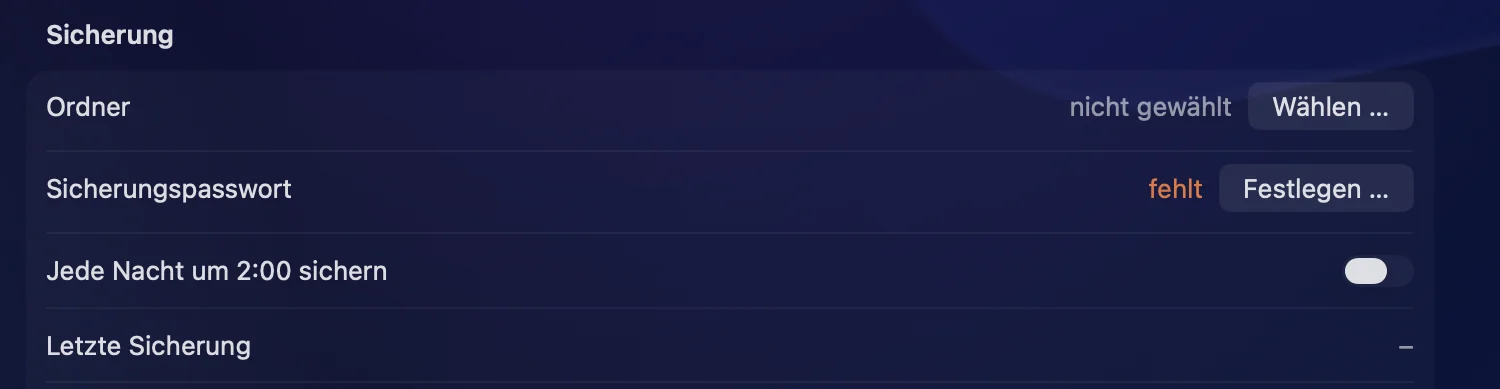
- Open Settings → Backup.
- Folder → Choose…: ideally a folder on an external drive or network drive, not on the same disk as the server.
- Backup password → Set…: at least 12 characters, enter it twice, Save. Write it down somewhere safe, separate from the server (e.g. in the management’s safe or password manager). Without this password nobody – not even you – can open a backup.
- Turn on Back up every night at 2:00. (The switch only becomes active once folder and password are set.)
- Click Back Up Now once to check that everything works. The Finder then shows the new backup file.
What gets backed up
- the database (all accounts, events, encrypted messages, settings, security events),
- all encrypted files and recordings,
- the certificate with its key – so the fingerprint stays the same after a restore,
- the installation’s settings.
How backups work
- Each backup is a file named
Sayfely-Sicherung <date> <time>.sayfelybackup. - It’s encrypted with the backup password (AES-256-GCM, key derived via PBKDF2-SHA256 with 600,000 rounds). A truncated, swapped or modified file can’t be opened. A wrong password is recognized as such.
- The folder keeps the last 14 backups; the app removes older ones.
- The backup password is stored in the server Mac’s keychain so the nightly backup can run without you.
- You can see whether the last backup worked under Last backup and in the Backup row of the overview. If a backup fails, the reason is shown there, e.g. “Backup not set up (folder or password missing).”
Restoring
- Settings → Backup → Restore….
- Choose File…, enter the Backup password, Open.
- The app shows the backup’s Organization and Created date and warns you: everything that happened since this backup (messages, events, accounts) will be lost.
- Restore. The server stops, the database, files and certificate are replaced, the certificate is reissued for this Mac (same key, same fingerprint) and the server starts again.
This installation’s database password and ports stay as they are; the company name comes from the backup.
Moving to a new Mac
- On the old Mac, click Back Up Now. Then quit the old server (Stop server and quit) so that two servers with the same key don’t run at the same time.
- If possible, give the new Mac the same local hostname as the old one (System Settings → General → Sharing).
- On the new Mac, open Sayfely Server, choose the Server address in the initial setup, then Restore from Backup….
- Select the backup file and enter the password, Open, then Set up. The new Mac takes over the key, people and data.
- Set up backups again on the new Mac (folder, password, nightly) – these settings belong to the Mac and aren’t part of the backup.
If the server address stays the same, all Sayfely apps reconnect without any new confirmation. If it changes, send everyone a sign-in link.
11. Security
The server logs failed attempts and unusual activity, locks automatically after too many failed attempts and reports everything live to the people affected.
Security events
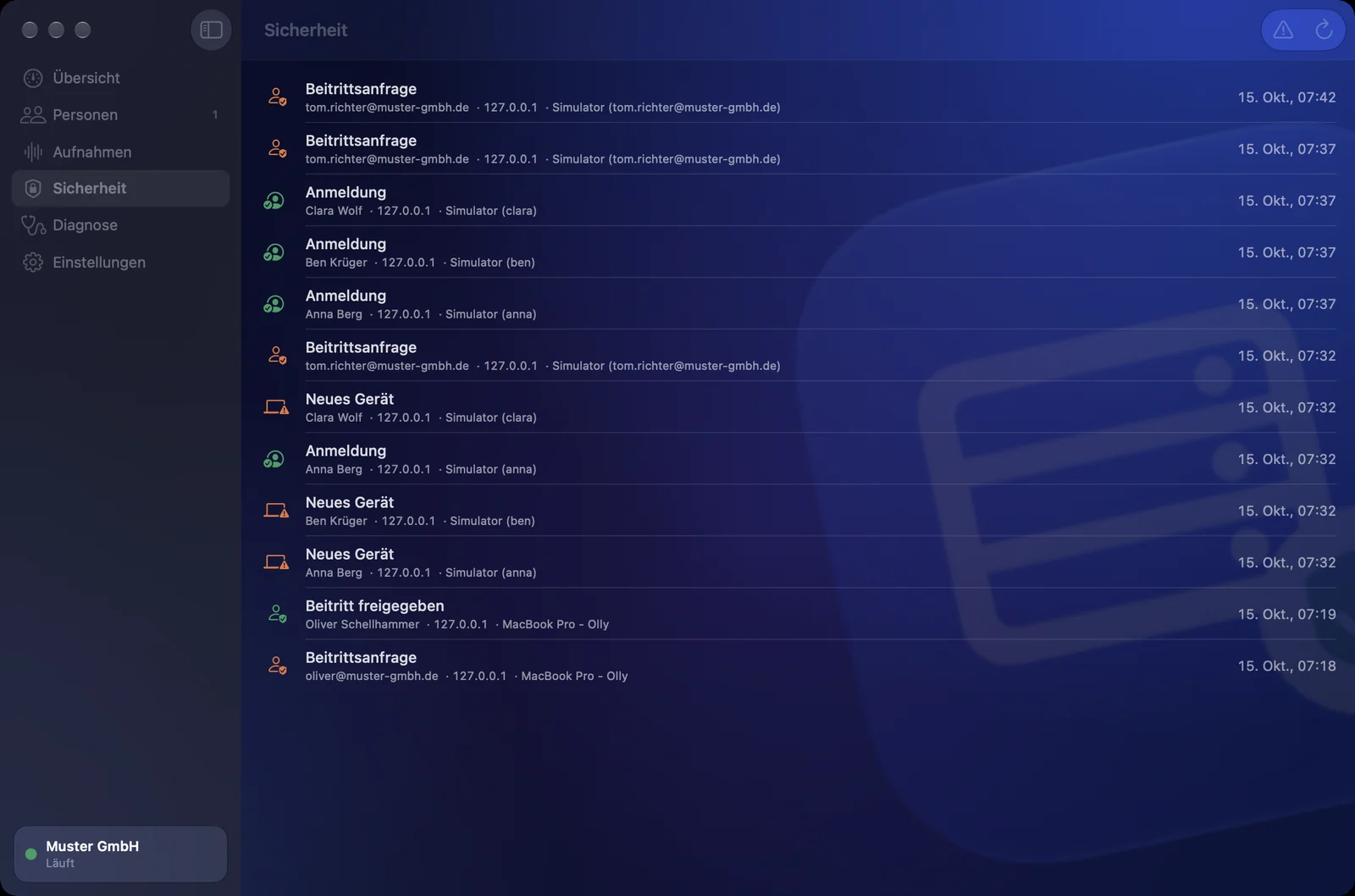
Under Security in the sidebar you see the last 200 events: type, person, network address, device and time. The color shows the result: red = rejected or locked, orange = allowed but worth checking, green = allowed. Problems only hides everything green, Refresh reloads (automatically every 15 seconds).
| Event | Meaning | What to do? |
|---|---|---|
| Wrong password | Sign-in with a wrong password (also for accounts that don’t exist) | A few: normal. Many from an unknown address: keep an eye on it. |
| Account temporarily locked | Lockout after 5 failed attempts; also sign-in attempts for an account you locked | Talk to the person; reset the password if needed. |
| Sign-in | Successful sign-in on a known device | – |
| New device | A person signed in on a new Mac. | If in doubt, ask; lock the account if necessary. |
| Device removed | A device was removed from an account | – |
| Wrong invitation code | Someone entered a wrong code for an invitation | If it happens repeatedly, revoke the invitation and create a new one. |
| Invitation locked | 5 wrong codes – the invitation can no longer be used | Create new link and code, and this time pass on the code securely. |
| Certificate changed | A Sayfely app saw a different server key than the one it remembered | Take this seriously, see below. |
| Join request, approval, rejection | A Mac asked to join without an invitation; an admin approved or declined it | Decline unexpected requests. |
Every event is also reported live to the person affected in their Sayfely app. The logs only contain the type, result, user and source – never passwords or content.
Lockout after failed attempts
- 5 failed attempts within 15 minutes lock for 15 minutes – separately for the account and for the network address the attempts come from.
- Every attempt is counted before the password is checked. That way, many simultaneous attempts don’t get any extra chances.
- During the lockout, the server doesn’t even check the password. Repeated attempts are logged at most once a minute.
- The same lockout applies to invitation links and join requests queried with wrong secrets.
- The server only stores passwords as bcrypt hashes.
- The lockout expires by itself after 15 minutes. The server app has no unlock button for this; Unlock on a person only lifts an account lock you set yourself.
Today’s number of failed attempts is shown on the Security card in the overview, the last 7 days in the Failed attempts, 7 days chart under Operations.
Security Center in the Sayfely app
Everyone sees the security card at the bottom of their app’s sidebar (“Connection Secure” and today’s failed attempts). Clicking it opens the Security Center. It’s also helpful for you as an admin when people have questions:
- Connection: server, organization, server version, TLS 1.3 encryption, server pinning (Active, key matches or Key changed!), realtime channel and the Pinned fingerprint (SHA-256). You can compare the fingerprint with the one in the server app.
- The Mac’s system permissions.
- The person’s security events, filterable by All, Sign-in and Invitations.
- My Devices – the person can sign out a lost device themselves with Remove.
12. Diagnostics and statistics
When something isn’t working: read error reports from the apps, create a diagnostic package, look at the traffic or test the load – always without content.
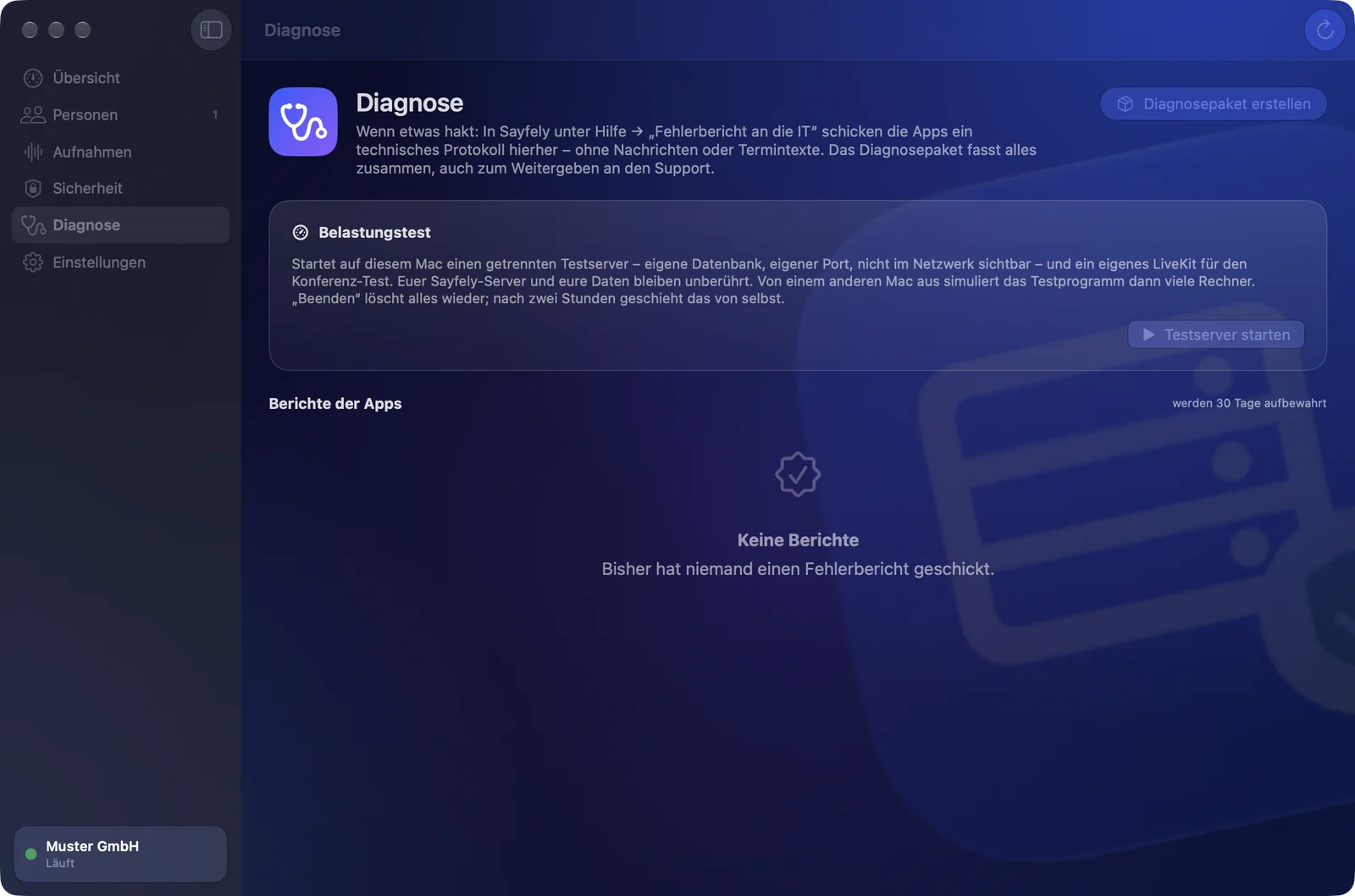
Error reports from the apps
If someone has a problem, ask them for an error report. In Sayfely this is under Help → Error report to IT … (also in the app’s settings and on the start screen). The person briefly describes what happened and clicks Send to IT – or Save as file … if there’s no connection.
The report contains a technical log: versions, connection, error messages. No messages, event texts, file names, passwords or keys.
In the server app, the reports appear under Diagnostics → Reports from the apps (with a number in the sidebar for the last 24 hours): person, device, description, app version, macOS version and Mac model. Clicking one opens the log; Copy puts it on the clipboard.
- Reports are kept for 30 days and then deleted automatically.
- The server accepts at most 20 reports per person per day; the log is limited to 1 MB.
Diagnostic package
Create diagnostic package puts a ZIP file Sayfely-Diagnose-<date>-<time>.zip on the server Mac’s desktop and shows it in the Finder. It contains:
- the logs of the three services (the newest 5 MB of each),
einstellungen.json– the settings without the database password and conference secret,system.txt– versions, macOS, processor cores, memory, addresses, fingerprint, state of the services,kennzahlen.json,verkehr-tag.json,verkehr-woche.json,sicherheitsereignisse.json– the last 1000 security events,- all error reports from the apps.
Traffic
The Traffic card in the overview shows either 24 hours (in quarter hours) or 7 days (in hours):
- People online, Devices connected, Peak, Requests, Data and – if there were any – Server errors.
- At the top a timeline of requests and live messages, at the bottom the connected devices.
Every minute, the server counts numbers only: requests, errors, data volume, live messages, connections and people online – without addresses and without content. The values are kept for 8 days. Video and audio from conferences go directly between the Macs and LiveKit and aren’t included here.
Connection tests
If someone complains about stuttering conferences or slow files, ask them to run Help → Test connection … in Sayfely (also in the Security Center under Connection). For about 20 seconds, the app measures response time, download and upload to your server – not to some server on the internet. The result appears under Diagnostics → Connection tests with time, person and device, the Path (office or internet), Ping (median / 95 %), Download and Upload. Tests are kept for 90 days.
Load test
Want to know whether the server Mac is big enough for your team? The Load test card starts a separate test server on this Mac: its own database, its own files, its own port, not announced on the network, no join requests – plus its own LiveKit for the conference test. Your Sayfely server and your data stay untouched.
- Start test server (only possible while the server is running).
- The card shows the Address (port 18450), Code and the Conference test row (LiveKit on port 17880 with key and secret). Enter these details into the test program on another Mac, which then simulates many computers.
- During the test, watch the Traffic card and the state of the Mac.
- Stop and delete test server removes everything again. This happens automatically after two hours, and also when you quit the server app.
Testing from outside (e.g. the test Mac on a mobile network): for the duration of the test, forward these ports to the server Mac in addition to the four forwards for normal operation, and remove them afterwards:
| Name (suggestion) | Protocol | Port external = internal |
|---|---|---|
| Test server (chat, speed test) | TCP | 18450 |
| Test conferences, signalling | TCP | 17880 |
| Test conferences, video and audio (fallback) | TCP | 17881 |
| Test conferences, video and audio | UDP | 17882 |
13. Settings
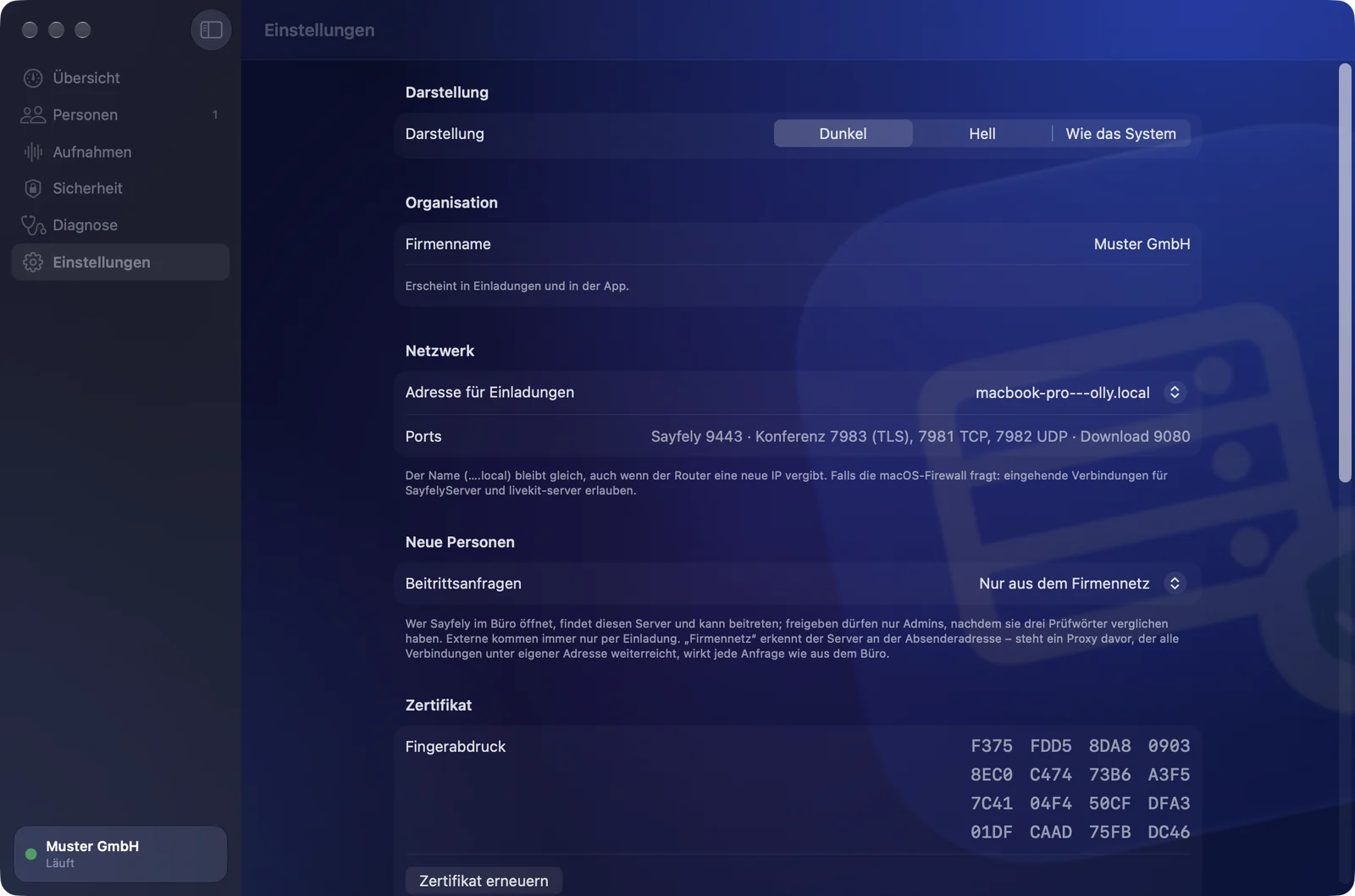
| Section | Setting | Explanation |
|---|---|---|
| Appearance | Dark · Light · Like the system | Only the look of the server app. |
| Organization | Company name | Appears in invitations and in the app. Press ↩ to apply; the server restarts briefly for this. |
| Network | Address for invitations | The name or IP the apps use to reach the server; it’s included in all new invitation and sign-in links. The name (….local) stays the same even if the router hands out a new IP. Changing it reissues the certificate (the fingerprint stays) and restarts the server. |
| Ports | Display only: Sayfely, conference (TLS, TCP, UDP), download. | |
| Access from the internet | Public address | Leave empty if Sayfely is only used in the office. With an address (e.g. office.company.com or a fixed IP), the app lists the four port forwards for the router; the Macs use the address automatically as soon as they can’t reach the office. See Reachability and network. |
| New people | Join requests | Only from the company network (default), Also from the internet or Off – invitations only. See the note below. |
| Certificate | Fingerprint, Renew certificate | Renewing adds new addresses. Key and fingerprint stay the same. |
| Backup | Folder, password, nightly, back up now, restore | See Backup. |
| Version | Install New Version… | See Updating the server app. |
| Maintenance | Show data folder, Log, Remove services … | Open the data folder in the Finder, open a service’s log, unregister the services (see Quitting). |
14. Quitting, restarting, services
Closing the window is harmless. When you quit the app, it asks what should happen to the server.
Closing the window
If you only close the window, the server keeps running in the background. Just open the app again when you want to manage something.
Quitting the app
When you quit (⌘Q), the app asks Quit Sayfely Server?:
| Button | Result |
|---|---|
| Stop server and quit | All services are stopped. Chat, events and conferences stop working for everyone until you open the app again – it then starts the services by itself. |
| Keep running | Only the app window closes; the server keeps running for the office. After the Mac restarts, it starts by itself once the user signs in. |
| Cancel | Nothing happens. |
A running load test ends in both cases.
Restarting the Mac
The services are registered with macOS and start by themselves after the user signs in. When you then open the server app, it checks everything and quietly reissues the certificate if the IP address is new.
Removing the services
Settings → Maintenance → Remove services … → Remove: server, database and conferences are stopped and no longer start automatically. All data is kept. Start in the overview sets everything up again. You’ll need this, for example, before taking the Mac out of service.
15. Switching from the old “Sayfe”
“Sayfe” was the product’s former name. Sayfely starts fresh – no data is carried over.
If the server app still finds the old “Sayfe Server” on the Mac (old services, old data folder or old app), Old Sayfe installation found appears at startup. The old server uses the same ports and would block Sayfely.
- Delete old installation: the old server is stopped and deleted along with all its data – accounts, messages, events, files, recordings and certificates (folder
~/Library/Application Support/Sayfe Server). The old app goes to the Trash. You then set up Sayfely from scratch. - Quit: the app quits and nothing is changed.
16. Reachability and network
Sayfely is built for the company network. By default, nothing is reachable from the internet – you deliberately turn on outside access in the server app.
- In the office, every Sayfely app finds the server automatically (Bonjour). Requirement: workstations and server are on the same network. Guest Wi-Fi networks or separate network segments (VLANs) often block the announcement. In that case, an invitation or sign-in link helps, or entering the address in Sayfely under Enter Server Address….
- Fixed address: use the
….localname. If the IP changes, the name stays. Alternatively, you can give the server Mac a fixed IP address in the router. - Firewall: allow incoming connections for
SayfelyServerandlivekit-server. - Router: for use in the office you don’t need to configure anything on the router. Only forward the ports the server app lists under Access from the internet – and only if you really want outside access.
Access from the internet (home office, on the road)
Two ways: a VPN into the company network (the Mac then behaves as if it were in the office; Sayfely doesn’t notice anything) – or the built-in access from the internet:
- Make sure your office can be reached from outside under an address – a hostname such as
office.company.com(e.g. via dynamic DNS) or a fixed IP address. - Enter it in the server app under Settings → Access from the internet → Public address and confirm with ↩. The server restarts briefly; the certificate and fingerprint stay the same.
- The app now shows Forward in the router to this Mac (…) with four forwards: Sayfely (chat, events, sign-in) 8443/TCP, Conference connection 7883/TCP, Conference video and audio (via relay) 3478/UDP and Conference video and audio direct (faster, recommended) 7882/UDP. Set up exactly these in the router (FRITZ!Box: Internet → Permit Access → Port Sharing → Add Device for Sharing → choose the Mac → one sharing rule per port).
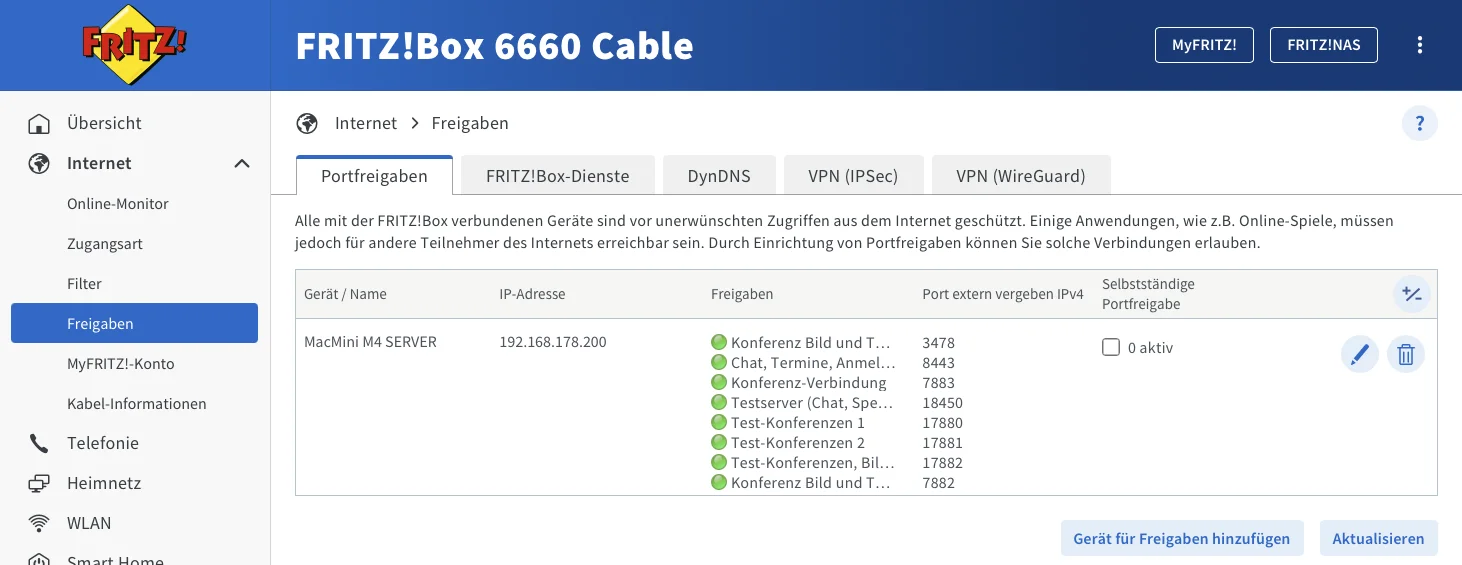
- The Sayfely apps learn the public address from the server and then know both addresses. They use the office as long as they can reach it and switch to the public address by themselves – and back. Invitations point there.
- Join requests stay limited to the office, even with a public address (unless you deliberately set Join requests to Also from the internet). Bring people outside the office on board with an invitation.
- Under Diagnostics, next to the response time, you can see how many connections currently come from the office and how many over the internet; the apps’ connection tests name the path too.
- Leaving the field empty means nothing is reachable from outside.
17. Linux and Docker
For companies with their own Linux server, Sayfely Server is also available as a Docker package. This is the route for specialists – no server app, no mouse clicks.
The Server/ package contains a Dockerfile and a docker-compose.yml with three containers: db (PostgreSQL 17), sayfely (the server, port 8443) and livekit (conferences, ports 7880, 7881 and 7882/UDP).
- Copy
.env.exampleto.envand set real values:SAYFELY_ORG_NAME,POSTGRES_PASSWORD,LIVEKIT_API_KEYandLIVEKIT_API_SECRET(at least 32 characters). Remove the development entrySAYFELY_REGISTRATION_CODE. - Put the certificate and key as
server-cert.pemandserver-key.pemintoServer/certs(or generate them withscripts/make-dev-cert.sh). - Start:
docker compose up -d - Show the fingerprint:
docker compose exec sayfely /app/SayfelyServer fingerprint - First admin invitation:
docker compose exec sayfely /app/SayfelyServer invite --admin --name "Vorname Nachname" --email name@firma.de– link and code appear in the output.
Managing from the command line
All commands use docker compose exec sayfely /app/SayfelyServer …:
| Command | Effect |
|---|---|
invite --name … --email … [--admin] [--days 1|3|7] [--department …] | Invite a colleague (link + code) |
invitations list · invitations revoke --id … | Show and revoke open invitations |
join list · join approve --id … [--admin] · join reject --id … | Join requests with check words |
users list | All accounts |
users promote|demote --user … | Grant or remove admin rights |
users disable|enable --user … | Lock (ends all sessions) or unlock |
users reset-password --user … | Generate a new password |
users rename --user … --name … | Change the display name |
users delete --user … | Delete an account with all its data (never the last admin) |
events · stats · traffic | Security events, key figures, traffic |
recordings list · recordings policy --video … --audio … --transcript … · recordings delete --id … | Recordings and deletion periods (days or never) |
diagnostics list|show | Error reports from the apps |
Differences from the Mac version
- No server app: everything runs through the command line above or through the admins’ Sayfely apps (approvals, invitations).
- No Bonjour announcement: new Macs don’t find the server by themselves. Use invitation or sign-in links, or have people enter the address in Sayfely.
- No built-in backup: back up the Docker volumes
dbandfilesand thecertsfolder yourself – above all the key. - The download page, app updates and TLS access to the conference control aren’t set up in the bundled Compose file. The server supports the variables
SAYFELY_DOWNLOAD_PORT,SAYFELY_CLIENT_ARCHIVEandSAYFELY_LIVEKIT_TLS_PORTfor this.
Server/deploy/macos/install.sh) that sets up the server with Homebrew packages. For offices, the server app is the recommended route.18. Licenses
Only the server is licensed. The Sayfely apps for colleagues are free – there is no license per person or device.
- Free for up to 3 people, with no expiry date and all features.
- From the 4th person: one price per server and year for the whole company, no matter how many people. One license covers one server – that is, one organization.
- Only your company’s accounts are counted; devices never are.
- When the license expires, everything keeps running – all people, all data. There are just no more updates until it is renewed. Nobody is locked out.
- The license is only checked when it is activated and when an update is fetched. Otherwise the server doesn’t contact anyone.
19. Troubleshooting and FAQ
A colleague sees “Sayfely is looking for your company’s server on the network …”, but nothing appears.
Is their Mac on the same network as the server (not the guest Wi-Fi, not connected from outside via VPN)? Is the server running (overview green)? Does the server Mac’s firewall allow incoming connections? If all of that is fine and it still doesn’t work, send an invitation with link and code.
“A service has a problem” in the overview.
Click the service marked in red and choose Show log. Then try Start or Restart. If that doesn’t help, create a diagnostic package.
“Port … is already being used by another program.”
Another program is using a Sayfely port (see Ports) – often a second Sayfely Server, an old “Sayfe Server” or a development server. Quit the other program and try again.
The download page won’t open.
Check the download port under Settings → Network → Ports – it doesn’t have to be 8080. The address starts with http://, not https://. Is the server running? Is the port open in the firewall?
Sayfely shows “Connection Blocked” for someone.
The app sees a different server key from the one it remembered. Did you set up the server again (without a backup)? Then send the person a sign-in link; they paste it into the lock screen and Sayfely carries on without signing in again. If you didn’t change anything, take the warning seriously and check the network (see “Certificate changed”).
The server Mac’s IP address has changed.
With the ….local name, nobody notices. The server app issues the certificate for the new address the next time it’s opened; you can also do this by hand with Renew certificate. The fingerprint stays the same.
Someone has forgotten their password.
People → right-click → Reset password. Pass the new password on in person or by phone. All of the person’s devices are signed out.
“Too many failed attempts” – someone can’t get in anymore.
After 5 failed attempts, the account and the sender’s address are locked for 15 minutes. Wait, then sign in with the correct password – or reset the password. Lots of lockouts for no obvious reason? Check under Security where the attempts are coming from.
The invitation shows “Locked (5 wrong codes)” or “Expired”.
Right-click the invitation → Create new link and code. This makes the old invitation invalid.
The “Backup” row is orange.
Either there hasn’t been a backup yet, the last one is older than two days, or the last attempt failed – the reason is shown next to it. Common causes: external drive not connected or backup not set up. Check Settings → Backup and click Back Up Now.
“Less than 10 % free – make room soon.”
The server Mac is running low on storage. Check the deletion periods for recordings (video takes up the most), delete recordings you no longer need or free up space on the Mac in some other way.
Conferences don’t connect or have no video and audio.
Is the Conferences service running? Does the firewall allow incoming connections for livekit-server? Are ports 7883/TCP, 7881/TCP and 7882/UDP open on the network? If chat and calendar work, it’s usually one of these.
I closed the window – is the server still running?
Yes. Only Stop server and quit when quitting the app, or Stop in the overview, halts it.
Can I read messages or recordings as an admin?
No. Content is end-to-end encrypted. The server – and therefore the server app – only knows times, people, sizes and responses.
An update of the server app is rejected.
The app only installs newer versions signed by the same publisher and notarized by Apple. Check that you have the right file and that it really is newer than the installed version under Settings → Version.
I can’t solve the problem myself.
Ask the people affected for an error report to IT, create a diagnostic package and pass it on to your support.
20. Launch checklist
Before you start using Sayfely day to day, tick off these points.
- Server Mac with macOS 26 or later, wired, set up securely, with a fixed local hostname.
- Automatic login on, sleep off, restart after power failure on.
- Sayfely Server set up, overview shows Sayfely Server is running.
- Firewall prompts for
SayfelyServerandlivekit-serverallowed. - Your own account created via Join with word comparison – you’re an admin.
- At least one second admin appointed.
- Backup set up: folder on an external drive, backup password noted down safely and separately, Back up every night at 2:00 on, one backup with Back Up Now successful.
- Unlocked a backup once as a test with Open in the Restore… dialog (then Cancel) to check the password.
- Deletion periods for video, audio and transcript agreed with management or data protection and set.
- The Join requests setting chosen deliberately (default: Only from the company network).
- Access from the internet deliberately left empty – or set up with exactly the four port forwards the app lists.
- Download page opened from another Mac, Sayfely installed, a test person brought on board.
- Test conference held with two Macs, including video, audio and screen sharing.
- Colleagues informed: download page (QR code), “Join”, compare three words, error reports via Help → Error report to IT.
- Rule for invitations communicated: link by e-mail, code by phone or text message.
- This plan agreed: who checks backup, storage and security events every week?
21. Glossary
| Term | Meaning |
|---|---|
| Admin | Person with management rights: approves join requests and invites colleagues. |
| Sign-in link | sayfely://connect?… – a link with the server address and fingerprint, without a secret. For new Macs and after a key change. |
| Join | A self-submitted request from the company network; an admin approves it after comparing the three check words. |
| Bonjour | Apple’s technology that lets devices announce themselves on the local network. Sayfely uses it so new Macs can find the server. |
| bcrypt | A method for storing passwords only as an irreversible hash. |
| Diagnostic package | ZIP with logs, versions, settings without secrets, key figures and error reports – without content. |
| Invitation | One-time link (256-bit secret, by e-mail) plus a 6-digit code (by a second route). Expiry is selectable; locked after 5 wrong codes. |
| End-to-end encryption | Only the devices involved can read content; the server only stores and distributes ciphertext. |
| Fingerprint | SHA-256 value over the public server key. Stays the same as long as the key stays the same. |
| launchd / LaunchAgent | macOS service management. The Sayfely services run as LaunchAgents of the signed-in user. |
| LiveKit | Self-hosted conference server for video, audio and screen sharing; included in the server app. |
| Deletion period | How long the video, audio or transcript of a recording is kept before the server deletes it. |
| Pinning (TOFU) | “Trust on First Use”: the app remembers the server key on first contact and blocks if it changes. |
| PostgreSQL | The server’s database; included in the server app, reachable only on the server Mac itself. |
| Check words | Three words that the server and the requesting Mac calculate independently. Matching words prove a direct, untampered connection. |
| Security event | Log entry for sign-ins, failed attempts, new devices, invitations, join requests and certificate changes. |
| Backup password | Password (at least 12 characters) used to encrypt all backups. Without it, no backup can be opened. |
| TLS 1.3 | The current version of transport encryption. The server only accepts TLS 1.3. |